Presidio

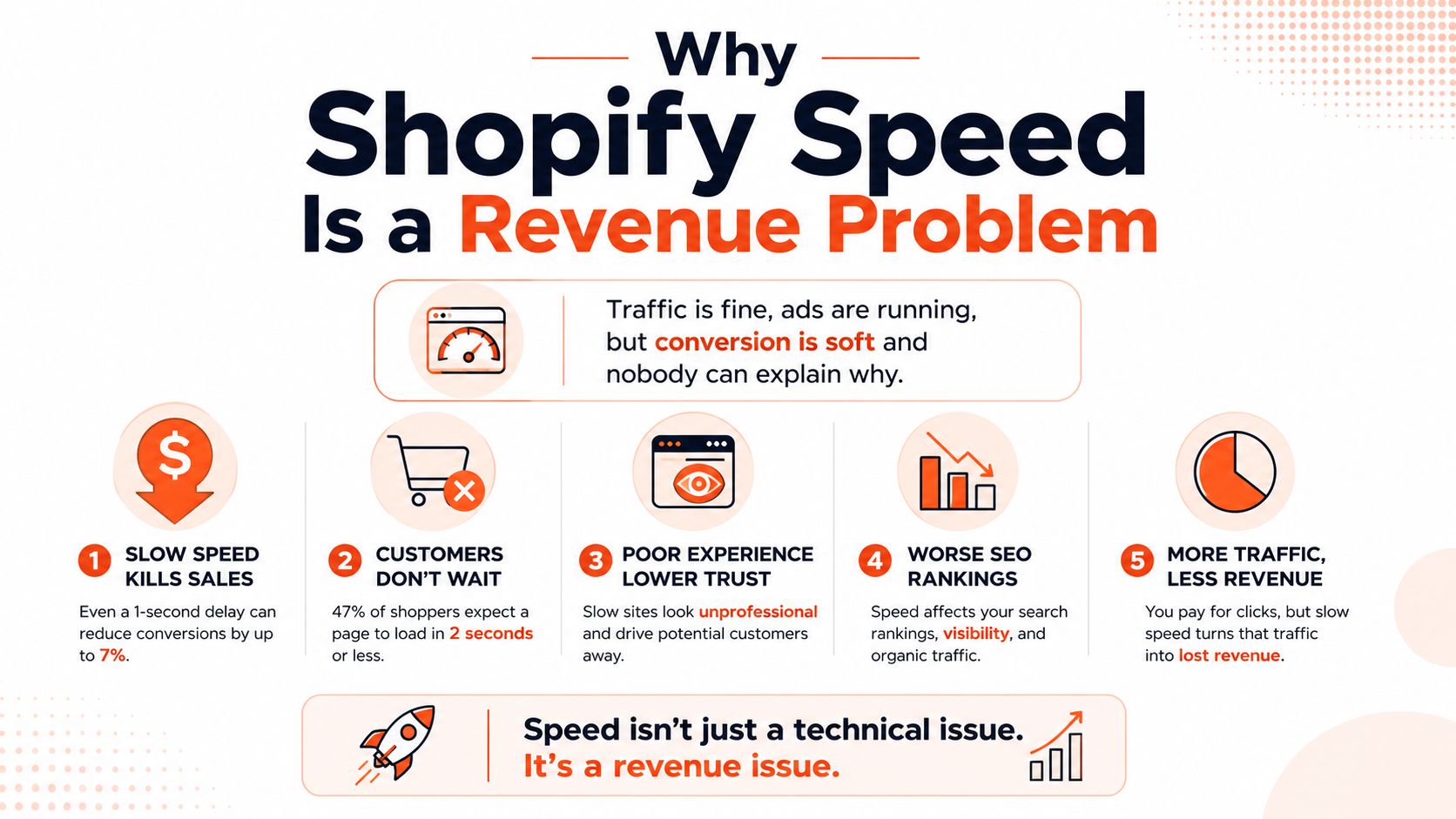
Traffic looks healthy on paper, the ads are still spending, and the product feed is full. Yet the store feels sticky, shoppers hesitate on key pages, and nobody can point to one obvious reason. That's the exact moment when shopify site speed optimization stops being a technical cleanup task and starts behaving like a revenue project.
Shopify has already given merchants a useful benchmark to work from. Its enterprise research says early 80% of Shopify stores pass all Core Web Vitals thresholds, and it also reports that conversion drops by about 3.5% for every 100 milliseconds a store loads more slowly, while stores with 2.5-second LCP see roughly 30% lower conversion than those with 1.5-second LCP (Shopify enterprise speed and conversion research). That's why the best speed work isn't about chasing a perfect score, it's about removing the biggest bottlenecks in the order that moves money.
If you also care about the UX side of that same problem, the broader framing in UX optimization for product teams is worth keeping nearby, because speed and experience are rarely separate conversations once shoppers start bouncing between category pages and product detail pages.
A useful CRO lens helps too, especially when the store already has traffic and the issue is friction rather than acquisition. The conversion side of the problem is well worth pairing with a structured review like the one in Presidio's AI-focused conversion rate optimization tips, because faster pages only matter if the rest of the buying path is also clean.
Table of Contents
Why Shopify Speed Is a Revenue Problem
A slow store rarely announces itself in a neat dashboard line item. More often, the merchant sees decent sessions, active campaigns, and normal email traffic, then notices that the funnel feels weaker than it should. The site isn't broken, it's just making every shopper wait through small delays that add up across home, collection, product, and cart pages.
That's why speed belongs in the revenue conversation. Shopify's own research ties conversion to page load time, and it does so with real-user field data, not a lab-only test (Shopify enterprise speed and conversion research). The practical takeaway is simple, each extra pause makes the buying decision a little harder, especially on DTC and Shopify Plus stores where people compare, scroll, and revisit before buying.
Core Web Vitals in plain English
Core Web Vitals matter because they map to what shoppers feel. LCP, or Largest Contentful Paint, tracks when the main visible content becomes usable. INP, Interaction to Next Paint, tracks whether taps and clicks feel responsive. CLS, Cumulative Layout Shift, captures the visual jumping that makes people mis-tap or lose trust.
If the hero image appears late, the page feels sluggish. If a variant switch lags, the product page feels unreliable. If the layout jumps while the page is loading, the store feels sloppy even when the design is attractive.
Practical rule: optimize the template that shoppers hit most often, not the one that looks worst in a screenshot.
Why “good enough” beats chasing perfection
Merchant teams waste a lot of time trying to turn every page into a perfect scorecard. That usually leads to low-yield tweaks, while the main bottleneck remains untouched. A faster homepage doesn't help much if the product template still drags, and a polished score in a lab tool doesn't matter if the live store still feels heavy on mobile.
The better sequence is straightforward. Measure the worst templates, fix the code that blocks rendering, reduce media weight, trim app and tag bloat, then validate again. That sequence is why the rest of this guide is ordered the way it is.
A helpful adjacent perspective on performance and product thinking is a review of broader UX work, especially when teams are trying to improve engagement without bloating the interface. That's where the speed discussion becomes useful beyond technical hygiene, it becomes a decision filter for the entire storefront.
Measuring Your Baseline Before Changing Anything
A merchant can spend hours changing apps, swapping snippets, and tweaking theme settings, then still have no proof that the store got faster. That is how speed projects drift into guesswork. Start with a baseline instead, so every later change has a point of comparison and a clear business impact.
Begin with the templates that carry revenue. Home, collection, product, and cart pages should be measured separately because each one serves a different shopping intent and can fail for different reasons. A single test URL can hide the issue if the collection page is heavy, the homepage is fine, or the cart only feels slow on mobile.
Templates that deserve attention first
Use Shopify's Web Performance reports for field data, because they show how real shoppers experienced the store over time. Pair that with PageSpeed Insights for lab diagnosis, then use Chrome DevTools when you need to see which scripts, images, or styles are slowing rendering down. Each tool answers a different question, and none of them should be treated as the full picture.
The pages worth checking first are usually the ones tied to purchase intent:
Home, because it sets the first impression and often carries broad traffic.
Collection, because browse behavior exposes filter, grid, and badge bloat quickly.
Product, because buying decisions and media weight collide here.
Cart, because friction here can erase the work done earlier in the journey.
Check performance on different devices and connections as well. Shopify recommends testing from different devices and networks and asking other people to validate the experience, so you do not mistake a fast local connection for a fast storefront (Shopify's web performance guidance).
The before snapshot to save
Capture a simple baseline before you touch anything. Save the page URL, device type, connection context, and the main speed indicators you are tracking in each tool. Keep notes on whether the slowdown appears to come from the theme, media, apps, or third-party tags, because that keeps you from repeating the same audit later.
Save the evidence first. Then make one batch of changes and retest the same template under the same conditions.
That habit turns speed work into something measurable instead of anecdotal. It also helps you stop once the gains start flattening out, which matters more than squeezing out tiny improvements that make the store harder to maintain.
Understanding Shopify's Server-Side Advantage
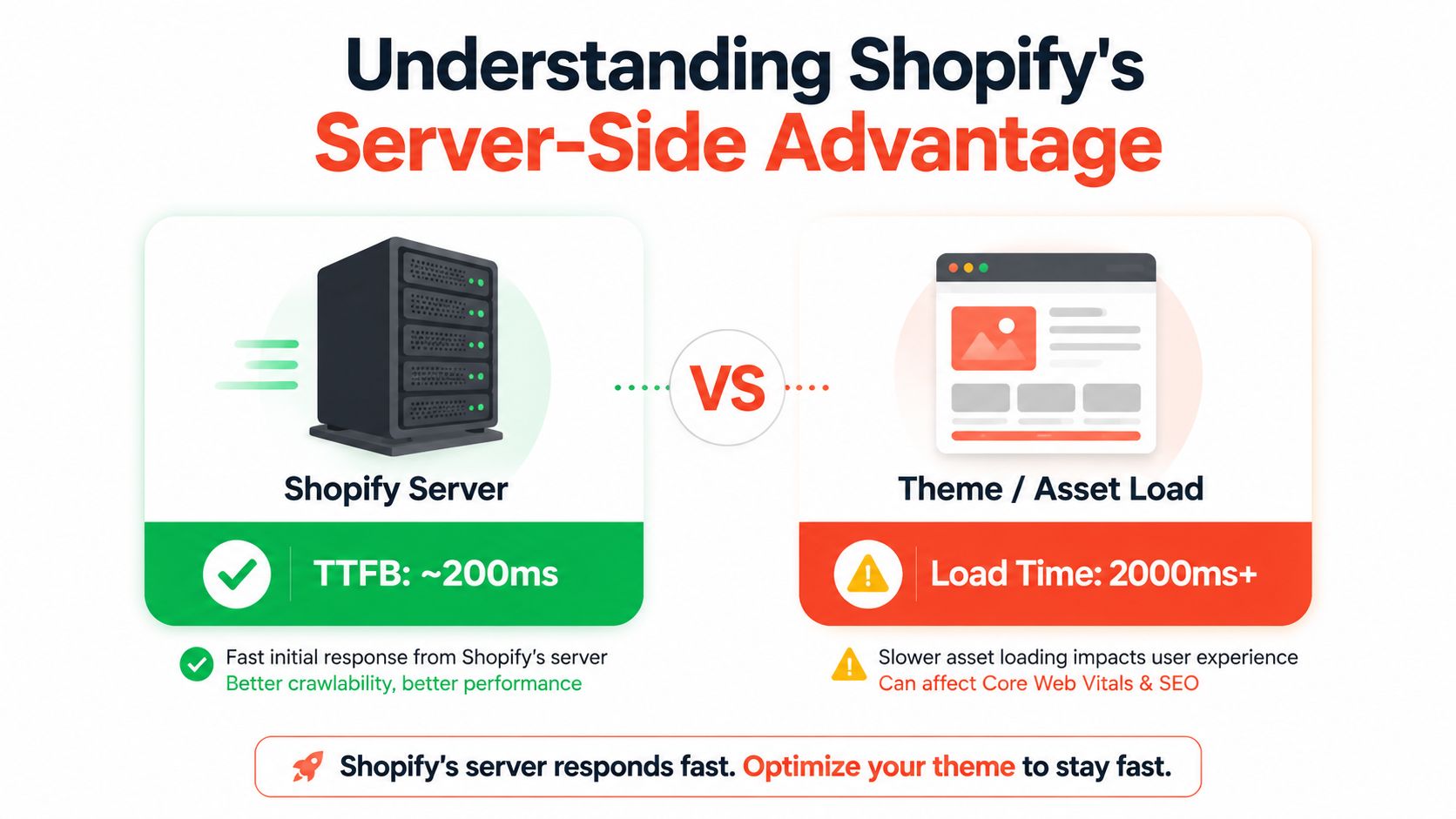
A slow Shopify store usually gets blamed on the platform first, but the main bottleneck is often closer to the storefront. That matters because speed work should go where the revenue loss starts, not where the blame feels convenient. Server response still counts, yet on a healthy Shopify setup it is rarely the primary drag on the experience.
Shopify's performance research shows a strong TTFB baseline, with its average server response sitting well ahead of what is common on other platforms, and that gap is big enough to matter before the theme, media, and app layer even come into play (Shopify web performance optimization research). The practical takeaway is simple. Shopify gives you a solid starting point, but it does not protect you from the slowdown created by your own storefront decisions.
What Shopify already handles
Shopify's infrastructure already takes care of a lot of the routine performance work merchants would otherwise have to manage themselves. Its guidance points to global server delivery, CDN support, browser caching, compression, image optimization, and minification as part of the platform stack. That narrows the list of things worth chasing.
A merchant can spend hours hunting for server-side fixes that will barely move the needle. On Shopify, the more common culprit is a theme that does too much, an app that keeps injecting code, or a template that carries too much media and too many assets for the page to load cleanly. If you need a reminder that theme choices still matter long after launch, see this practical Shopify theme update guide.
The point is not that infrastructure never matters. The point is that Shopify already covers the basics well enough that performance work usually pays off faster when you focus on the storefront layer first.
Where slow stores usually really live
When TTFB looks weak on Shopify, the cause is often in the store build rather than the platform itself. Over-customized theme code, redirect chains, leftover app embeds, and third-party scripts can make a store feel slow even when the server is doing its job.
The same pattern shows up in downstream metrics. Once the first byte arrives quickly, LCP and INP are shaped mainly by what the browser still has to download, render, and execute. That is why the highest-return work is usually the code and content that sits in front of the shopper, not the hosting layer behind it.
If you need a broader technical reference for the kinds of fixes that tend to move performance in the right direction, the guide on development SEO by Market With is a useful companion. It reinforces the same practical idea merchants run into on real stores. Clean implementation matters more than chasing platform myths.
For benchmarking, keep the focus on the metrics that tie back to revenue. Shopify's own research points to under 2 seconds as a useful performance target for ecommerce pages. That gives teams a realistic line to work against without pretending every template should behave the same way.
Cleaning Up Theme Code and Render-Blocking Assets
A store can have a fast server and still feel slow the moment the theme loads too much work into the browser. Theme cleanup usually pays off faster than merchants expect, because the theme controls what the shopper has to wait on before they can interact. Over time, sections, snippets, and scripts pile up. Each one seems small on its own. Together, they make the page heavier than the original build ever needed to be.
A useful audit starts by reading the theme like a live product, not a static template. Look for sections that exist but no longer serve a purpose, snippets copied over during an old customization, and Liquid loops that ask the page to do more work than the template really needs. That waste rarely stands out in a visual review, but it shows up quickly in performance traces, especially when TTFB is fine and the slowdown comes from everything the browser still has to process.
Theme structure and Liquid waste
The fastest gains usually come from simplification. Remove dormant sections from high-traffic templates, especially on the homepage and product page, where every extra block adds markup and often more scripts. Check whether collection or product loops are pulling in more data than the page can reasonably show, because a template that does unnecessary work will slow down the first render even if it looks clean in the editor.
Many stores also carry features that were added for a campaign and never retired. A slider, badge system, or promotional module that no longer supports the merchandising plan should not keep loading on every page. The goal is not to strip the storefront bare. The goal is to make each section justify the bytes it adds.
A useful test: if a section does not help a shopper choose, compare, or buy on that specific template, it probably should not be part of the critical path.
The trade-off is real. A richer theme gives merchants more merchandising flexibility, but flexibility gets expensive when it loads everywhere by default. That is why theme maintenance should be tied to the templates that drive revenue, not to abstract design preferences.
If your store has outgrown the original build, the case for a cleaner structure is often stronger than another round of patchwork edits. The benefits of updating your Shopify theme become obvious once the old code starts carrying more weight than the features shoppers use.
Scripts, CSS, and third-party clutter
Render-blocking assets are another place where speed leaks away. JavaScript that does not need to run immediately should be deferred, and CSS should stay as lean as practical so the browser can paint the first view without waiting on styles it may never use. The browser developer tools remain the right place to identify which files are slowing the page, especially when a template feels delayed even though the server response is acceptable.
Third-party code creates hidden drag as well. Fonts, animation libraries, sliders, and old integrations often remain in the theme long after they stop adding meaningful value. If the visual effect is subtle but the performance cost is obvious, the effect usually is not worth it.
For a related perspective on keeping the implementation cleaner, the guide on development SEO by Market With is a useful reference point, because site health and crawlability often improve when the codebase stops carrying dead weight.
A practical afternoon audit can stay simple. Open the main templates, identify what fires before first interaction, and separate essential logic from decorative logic. Anything that does not help the first screen should be treated with suspicion.
Images, Video, and Asset Strategy for Shopify
Images are usually the most controllable source of render delay on a Shopify store. The mistake many teams make is assuming that Shopify's image handling makes file discipline unnecessary. Shopify can help deliver assets efficiently, but it can't rescue a hero image that was uploaded at a size far larger than the page needs.
That's why the asset strategy has to start before upload, not after. The right file, at the right size, on the right template will always outperform a giant original that the browser is forced to shrink on the fly. The merchant still controls that part.

Sizing and format choices that matter
For photos, WebP is usually a sensible default because it compresses well without asking shoppers to download unnecessary weight. AVIF can be useful when your image pipeline and browser support fit the use case, especially when you're pushing for strong compression on image-heavy templates. Shopify's responsive image handling should still be part of the setup, because it lets the browser request a more appropriate asset for the screen size.
The rule is simpler than the format debate. Match the file to the slot. Collection cards need small, predictable images. Product galleries need multiple sizes. Hero images need to be intentional about the actual viewport they're trying to fill. Uploading a 4000px banner and letting CSS shrink it is still wasteful, even if the page looks fine.
A few practical habits help keep that discipline intact:
Resize before upload: don't rely on the browser to do the heavy lifting.
Serve responsive variants: let the page send the right size to the right device.
Protect the above-fold image: don't treat the first visible visual as optional weight.
Review media per template: a collection grid and a PDP have different needs.
Shopify's CDN can handle delivery, but the merchant still has to give it smart assets to work with. That's the part worth controlling.
How to handle video without slowing the hero
Video can help a shopper understand fit, motion, installation, or scale, but it's expensive when it lands too early in the page. Autoplaying hero video is the classic trap. It looks premium in a mockup, then turns the first screen into a loading problem.
A better pattern is to reserve video for the point where it helps the decision. That might mean a product detail section, a below-fold explainer, or a click-to-play interaction instead of immediate autoplay. For stores that rely on video-rich merchandising, the asset choice matters as much as the placement.
The same caution applies to external embedding. If a YouTube or Vimeo player is loaded too aggressively, the page can inherit more weight than the media deserves. The practical trade-off is to keep video where it improves conversion and keep it out of the critical path where it doesn't.
For teams comparing video workflows, optimize YouTube video quality is a helpful companion read, especially when the store uses branded content across product and education pages. The key is the same either way, make media useful without letting it dominate the page.
Auditing and Removing App and Third-Party Tag Bloat
A slow Shopify page is often not slow because of one big mistake. It is slow because five or six apps, a tag manager, and a handful of marketing pixels each added a little extra work until the storefront was paying for all of it on every visit. I see this most often on mature stores, where each department has added its own tool and nobody has traced the page cost back to revenue.
Start with a revenue question, not a technical one. Which scripts help a shopper decide, buy, or trust the store, and which ones only survive because nobody has removed them yet? That filter matters more than a raw app count.
How to tell what is earning its keep
Open the storefront in Chrome DevTools and watch the Network panel. Look at the requests that fire on every page, not just inside an app's settings screen, then match each one to a customer-facing job.
A reviews widget that builds trust on product pages has a clear purpose. A duplicate popup, an abandoned A/B testing tool, or an old tracking integration usually does not. The same goes for tag managers. Some tags support paid media, analytics, or compliance, while others stay in the critical path long after the campaign that installed them has ended.
A practical audit usually starts to show trouble when a page is carrying too many third-party requests for the amount of work they do. If a template is loading a long chain of app scripts, or if a product page waits on several external tags before the first useful content appears, the page is paying a speed tax that shoppers feel before they ever reach the add-to-cart button. In my experience, the point where the bloat becomes hard to ignore is when the page depends on multiple non-essential scripts just to render basic selling content cleanly.
A useful short list for appraisal looks like this:
Storefront apps: review whether they inject code globally or only on relevant templates.
Analytics and pixels: check whether every tag is still needed or still configured correctly.
Marketing widgets: confirm they support the current funnel, not last quarter's experiment.
Operational tools: keep them only if they influence the customer experience or essential workflows.
That list is not about deleting everything. It is about making each tool justify its footprint. If two apps do the same job, the lighter one usually wins, especially when one of them also loads extra CSS, JavaScript, or remote calls on every page.
Testing removals without breaking the store
Uninstalling an app does not always remove every trace of it from a theme. Shopify's web performance guidance notes that leftover code may need cleanup from the app developer, which makes delete-and-pray removal a bad habit. Test removals in a safe theme copy or staging setup first, then check the storefront with the same templates and device contexts you used for the baseline.
That keeps the audit tied to actual business risk. If a tool is worth keeping, the storefront should show why. If it is not, the network trace usually makes that obvious before a merchant notices the delay.
A solid rule is to keep only the scripts that clearly support selling, service, or measurement. On a healthy store, a product page should not be weighed down by a pile of unused app code. Once a page starts carrying several unnecessary third-party tags, or when a new app adds visible delay to the main content, it is time to remove it or replace it with a lighter setup.
Validating Changes and Maintaining Speed Over Time
Speed work only counts if the numbers improve after the change, not just in theory. Re-run the same baseline checks after each batch of edits, using the same templates and the same tools. If one fix moves the needle and another doesn't, keep the first and question the second.
The point isn't to optimize forever. Once the obvious bottlenecks are gone, further work becomes a CRO decision more than a performance one. If a page is already quick enough, the next gains may come from merchandising, copy, or layout, not more engineering.
A healthy maintenance routine is simple: review theme updates before publishing them, audit apps on a schedule, keep redirect hygiene tight after migrations or product changes, and re-check major images whenever the catalog shifts. For teams that want ongoing help with that kind of discipline, Presidio's Shopify speed optimization service is a useful reference point for the kind of support that keeps performance from drifting.
The revenue argument is the easiest one to keep in front of stakeholders. Shopify's own research already ties speed to conversion, so the work is easier to defend when it's framed as protecting the buying path rather than polishing a scorecard (Shopify enterprise speed and conversion research).
If your Shopify store is already getting traffic but still feels heavier than it should, Presidio can help you find the bottlenecks in the theme, media, and app stack. Visit Presidio if you want a Shopify implementation that's built to stay fast, stay maintainable, and keep improving after launch.