Outrank AI

Compress your images and delete your apps. That's the standard advice for how to optimize website speed on Shopify, and it's where most merchants waste their first month. A store can pass that checklist and still feel sluggish when a shopper taps a variant, opens filters, or adds to cart on a mid range phone.
Speed isn't just a homepage loading problem. It's an interaction problem that continues after the hero renders. If you only chase a lab score, you'll fix what the tool measured and miss what your customer waited for.
Table of Contents
Reading Field Data Before Lab Scores
Run Lighthouse once, see red, start uninstalling apps. I've watched that sequence break revenue features while leaving the bottleneck untouched.
Field data tells you what real visitors experienced on real devices and networks. Lab data tells you what happened in one controlled run. You need both, but field data decides where to start.
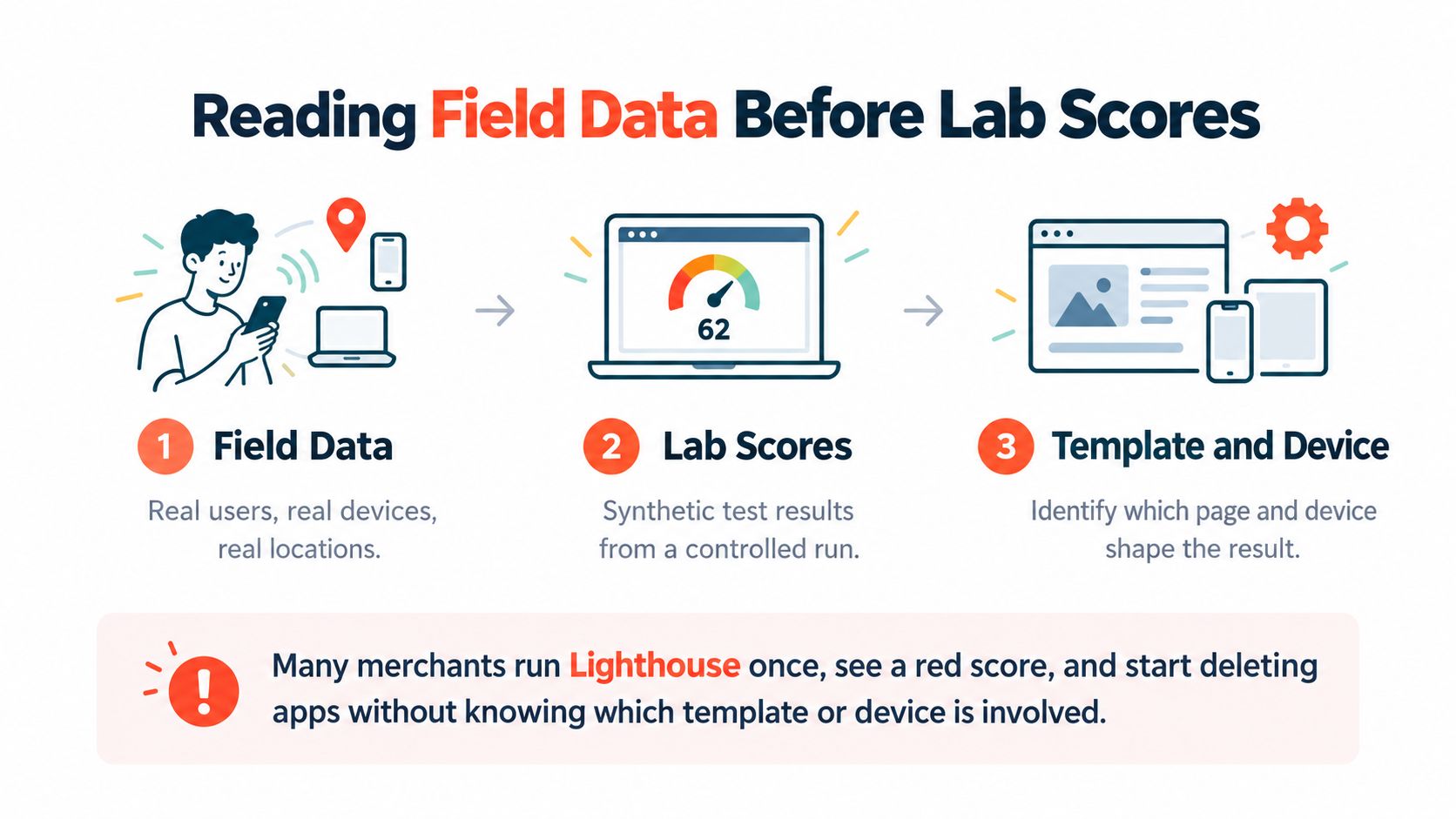
Core Web Vitals are judged at the 75th percentile, meaning the experience that separates the better three quarters of visits from the worst quarter. Google's recommended targets are LCP ≤2.5 seconds, INP <200 milliseconds, and CLS <0.1, as set out in Google's Core Web Vitals guidance. If your 75th percentile mobile product page misses those marks, a single desktop Lighthouse run in your office doesn't rescue it.
Where Each Data Source Belongs
Use the Chrome UX Report through PageSpeed Insights or Search Console to see field performance by device. That view reflects anonymized real user conditions, including slower phones and patchy connections you won't replicate on office WiFi. For a deeper primer on the metrics themselves, this explanation of what Core Web Vitals measure is worth reading before you touch theme code.
Once field data points to a failing template, switch to lab tools. Lighthouse and WebPageTest let you repeat the same conditions and isolate causes such as render blocking CSS, JavaScript execution, image decoding, third party requests, and server response time. Lab work answers why. Field work answers where and for whom.
Practical rule: Don't declare a fix successful because Lighthouse improved. Call it successful when the 75th percentile improves for the device and geography cohort that was failing.
That distinction matters in audits. A merchant compresses a hero, gains points in a lab test, and celebrates while CrUX stays poor because most traffic lands on collection pages with heavy filtering scripts. The score moved. Shoppers didn't notice.
Guardrails Beyond the Metrics
Track conversion and revenue alongside LCP, INP, and CLS. Removing a quiz might lighten a page and reduce qualified add to carts. Keeping it might be the right trade if it's deferred properly.
Segment before you optimize. Split mobile from desktop, and split templates from each other. Prioritize the largest failing segment by traffic and revenue, not the URL that's easiest to test. That's the foundation for learning how to optimize website speed without guessing.
Auditing Shopify Templates Step by Step
A homepage test is a weak proxy for a store. Product pages carry galleries, variant logic, reviews, and sticky add to cart. Collection pages carry filters and dozens of cards. They fail for different reasons.
Build a baseline you can repeat after every change. If you can't rerun it the same way next week, you don't have an audit, you have screenshots.
Build the Template List
Start with five groups and add campaign landing pages if they receive paid traffic. Don't test twenty individual products. Test representative examples with typical media and app content.
Home: Hero media, announcement bars, and featured collection sections in their normal state
Collection: A large catalog page with filters enabled and a full grid of products
Product: A bestseller with variants, multiple images or video, reviews, and recommendations
Cart drawer and cart page: The interaction path after add to cart, including upsells and shipping calculators
Content and landing pages: Quiz pages, lookbooks, or advertorials that carry their own scripts
Pick URLs shoppers use. A stripped test product with one image will flatter you and hide gallery and variant costs.
Run Repeatable Tests
Run Lighthouse in an incognito window with the same throttling settings each time and record mobile and desktop separately. Run each template more than once and note the median pattern, not the best score. Save the LCP element, the largest resources, and any long tasks the report flags.
Pair those lab results with field data for the same template where Search Console groups similar URLs. A simple spreadsheet works if it stays disciplined. Log the date, template, device, LCP, INP where available, CLS, total weight, and the top suspected cause.
A baseline you cannot reproduce is just an opinion with numbers attached.
Read the Pattern, Not the Score
Consider a common pattern. The homepage passes on mobile while product pages fail. That split usually points away from the global header and toward product specific weight, such as an oversized gallery, a video that loads eagerly, a review widget injected above the fold, or variant code that re-renders large sections of the page.
If collection pages are the outlier, look at faceted filtering, infinite scroll, and card images loading at product page sizes. If every template fails the same way, suspect global assets, fonts, tag managers, or app embeds added storewide.
Now rank the list. Put high traffic failing templates first, then lower traffic templates with severe failures, then passing templates you'll only monitor. Don't fix in spreadsheet order. Fix in customer impact order.
Test interactions while you're there. Tap variants, change quantities, open and close the cart drawer, and apply a filter on a real mid range phone. Note any tap that feels delayed even when the initial load looked acceptable. Those notes become critical later.
End the audit with one ranked list and one suspected cause per template. You're ready to spend effort where the bytes and tasks live.
Ranking Fixes for Images, Apps, and Theme Code
Not every Lighthouse suggestion deserves your week. Minifying a small stylesheet feels productive while a hero video and six app scripts dominate the page. Rank by bytes and blocking time on the failing template, not by ease.
Page weight explains why. HTTP Archive's 2022 Web Almanac page weight findings recorded median desktop transfers of about 1,026 KB of images and 509 KB of JavaScript, compared with 72 KB of CSS and 31 KB of HTML. Mobile pages transferred about 881 KB of images and 461 KB of JavaScript. Chasing tiny HTML savings before images and scripts is the wrong order.

Images First, but Sized Correctly
Compress product and hero images, then serve the size the layout displays. Shopify can deliver responsive sizes when your theme uses appropriate image markup, so a phone shouldn't download a desktop banner and shrink it. Check your settings against practical hero image size guidance before uploading campaign assets at full camera resolution.
Preload only the true LCP asset. If the LCP element is the first product image, prioritize that image and lazy load gallery images below it. Preloading three banners, a logo, and a font creates competition and can make the important asset slower.
Reserve width and height for images and video. That space prevents text and buttons from jumping as media loads, which protects CLS and stops mis taps on variant and add to cart controls.
Apps and Theme Sections Next
List every app and note where it injects code. Many merchants discover a review, chat, or personalization script loads on the homepage, blog, and cart even though shoppers only see value from it on product pages. Limit features to relevant templates when the app allows it, remove app embeds left behind in theme settings, and delete code from apps you've already uninstalled.
Remove: Features nobody uses, duplicate tools, and embeds from uninstalled apps still loading scripts
Restrict: Product only widgets that currently run storewide
Replace: Heavy sliders or galleries where a static first image and native controls do the same job
Then clean the theme. Delete unused sections from templates, retired campaign code, and CSS for features you no longer render. Don't strip code blindly based on a coverage report from one page. CSS that looks unused on the homepage may style the cart drawer.
Order fixes for the worst template first. A product page usually gains more from gallery discipline and removing one blocking widget than from a storewide CSS refactor. That sequencing is the practical core of how to optimize website speed on a real Shopify budget.
Trimming Scripts, Fonts, and Critical CSS
JavaScript costs you twice. The browser downloads it, then the phone's CPU parses and executes it. A smaller file that still runs expensive work on every tap won't feel fast.
The scale is hard to ignore in HTTP Archive's 2025 page weight data, which reported median total page weight of 2,652 KB on desktop and 2,311 KB on mobile, with JavaScript at about 620 KB and 570 KB. The median desktop page requested 24 JavaScript files and the median mobile page requested 22. On Shopify, analytics, reviews, chat, personalization, and merchandising tools add up fast if nobody owns the script budget.
The dashboard view below is useful only if you connect its warnings to specific templates and tasks.
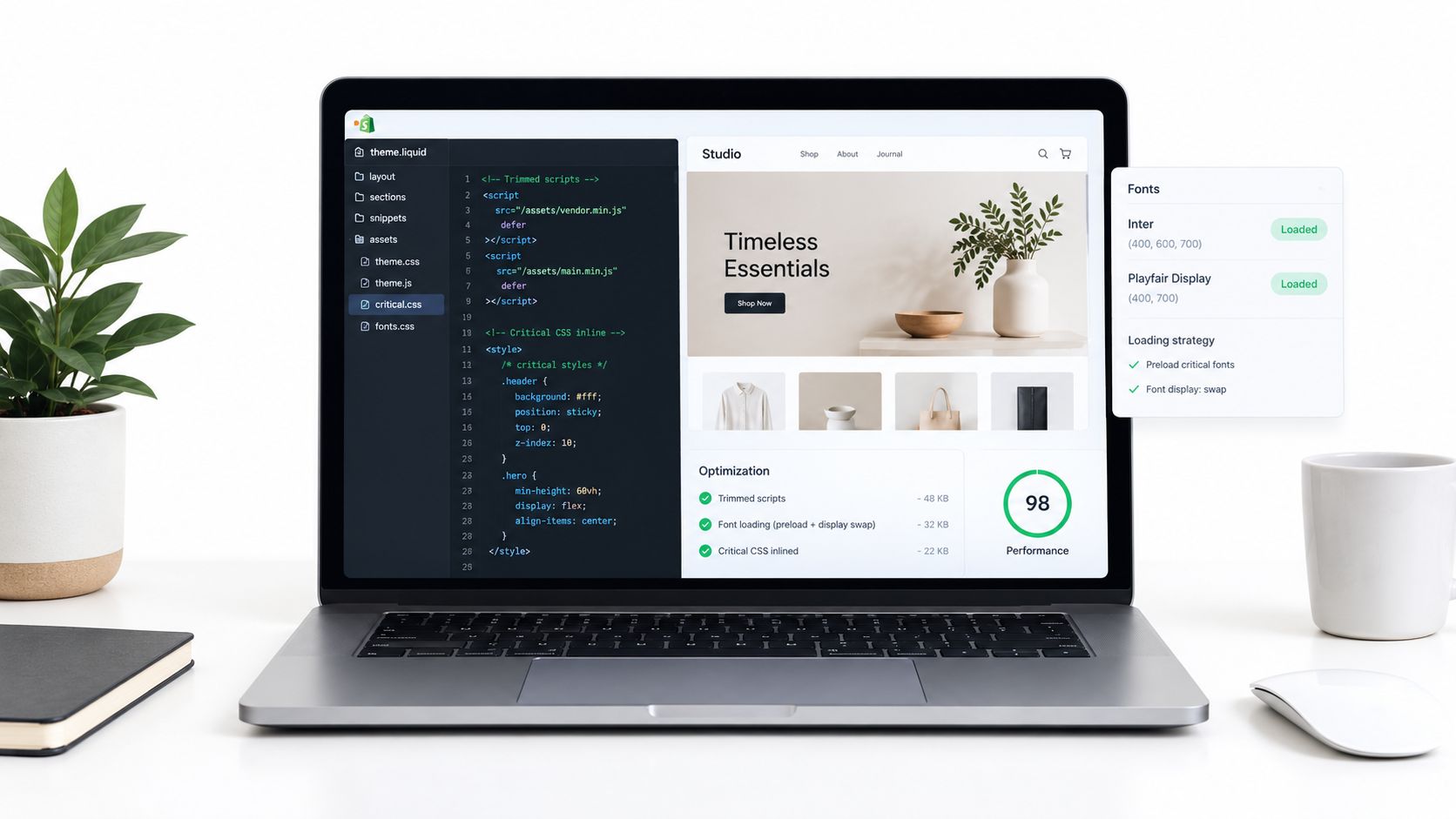
Cut Execution, Not Just File Size
Use coverage and performance profiling in Chrome DevTools to find unused JavaScript and long tasks. Split code so product gallery logic doesn't load on the cart page and quiz logic doesn't load on the blog. Tree shaking and code splitting help in custom builds, but template conditional loading often gives Shopify themes the fastest safe win.
Defer noncritical scripts and delay chat, reviews, analytics extras, and personalization until interaction, scroll, or consent where that fits your tracking requirements. Test attribution and consent behavior carefully. A script that loads late and breaks campaign reporting is not a clean win.
If you're making these changes in Liquid and theme assets, this walkthrough on how to edit a Shopify theme safely covers the workflow basics. Duplicate the theme, change one thing, preview every template, and keep a rollback point. Theme scripts often depend on each other in ways a homepage test won't reveal.
Fonts and Critical CSS
Limit font families and weights. Every extra weight is another file the browser must fetch and another chance for text to shift. Use font display settings that show fallback text quickly and reserve sensible space so headings don't reflow the page when the brand font arrives.
Font subsetting is worth considering when you self host or control font files. If you want the mechanics, this resource on how to reduce web font file sizes explains subsetting without turning it into a full rebuild. Don't preload every weight. Preload the one used by your main heading only if testing proves it helps.
This walkthrough shows how script and style changes appear in performance tooling before you ship them.
For CSS, inline the critical styles needed for above-the-fold content on key templates and load the rest asynchronously. Keep critical CSS small, or you've moved the blocking problem into the HTML. Generate it per template type, because product and collection pages don't share the same first screen.
Retest interactions after each script change. Variant selection, quick add, filters, and the cart drawer break more often from deferral mistakes than from compression. One change at a time feels slow. Debugging five simultaneous changes is slower.
Choosing Between Removing, Deferring, and Rebuilding Features
Deleting every slow feature is easy advice and often bad business. A quiz that helps a shopper choose a shade, size, or supplement can earn its weight. A decorative widget that nobody touches can't.
Judge features by revenue per performance cost, not script count. One well deferred recommendation widget may hurt less than a small custom script that re-renders the product form on every variant tap.
That interaction cost is where many audits stop too early. HTTP Archive's 2025 performance findings show only 48% of mobile websites passed all three Core Web Vitals, while 77% had good mobile INP, with mobile INP at 320 ms at the 75th percentile compared with 120 ms on desktop. A page can look loaded and still respond slowly on the phones most shoppers use.
Test the Actions That Sell
Measure variant selection, filter changes, quantity updates, add to cart, and cart drawer edits on a mid range phone with constrained network conditions. Watch for long tasks, heavy event handlers, and re-rendering that replaces large parts of the page for a small state change. If tapping a size triggers a gallery rebuild, a reviews refresh, and a recommendation recalculation, the shopper feels all three.
Approach | When It Fits | Main Risk |
|---|---|---|
Remove | The feature has low usage, duplicates another tool, or adds no measurable conversion value | You remove a quiet driver of assisted sales or support deflection |
Defer | The feature matters later in the session, after scroll, interaction, or consent | Delayed loading creates layout shift or missing tracking if implemented poorly |
Rebuild | The feature is core to shopping but the current app or script runs heavy work on every interaction | Custom code costs more upfront and needs long term maintenance |
Remove first when usage is low. Check clicks, quiz completions, chat starts, and assisted orders before you decide a tool is dead weight. Merchants often keep a homepage popup because it's visible and remove a product finder because it's quiet, even when the finder produces better sessions.
Defer when timing is the problem. Reviews below the fold, chat, and recommendations don't usually need to compete with the LCP image or the first variant tap. Load a lightweight placeholder with reserved space, then bring in the full feature on approach or interaction.
Rebuild when the feature is core but the implementation fights the storefront. A native filter, a lean cart drawer, or a purpose built quiz can run only the work the interaction requires. Teams without in house capacity sometimes bring in a specialist for this trade off work. Presidio, a Shopify agency offering performance tuning, speed checks, and custom theme and app development, is one example alongside in house development or a freelance performance engineer.
Decision test: If you'd keep the feature after seeing its INP cost and its revenue contribution side by side, defer or rebuild it. If you wouldn't, remove it and don't replace it.
Setting a Testing Cadence and Monitoring Speed
Stores don't stay fast by accident. A new app, a campaign video, a theme update, or a merchandising widget can undo an audit in one release. Monitoring turns speed from a project into an operating habit.
Keep the cadence simple enough that your team will follow it during launch weeks. A complicated dashboard nobody opens protects nothing.
A Cadence That Survives Real Work
Run a weekly lab check on your key templates with the same settings you used for the baseline. Review field data monthly at the 75th percentile, split by device and template group. Field data needs time to reflect a change, so don't panic or celebrate based on two days of CrUX movement.
Weekly: Repeat lab tests for home, collection, product, and cart paths after releases
Monthly: Compare field LCP, INP, and CLS against targets and against conversion and average order value
Before major releases: Test campaign pages, new sections, app installs, and theme updates on a duplicate theme with real product data
Set alerts where your tooling allows them when a template crosses a Core Web Vitals threshold. If you don't have alerting, assign one owner to check the same report on the same day each week. Ownership matters more than the specific monitoring product.
Log Changes Like Experiments
Keep a change log next to your baseline sheet. Record what changed, which templates it touched, the expected effect, and before and after results. Include app installs and marketing tags, not just developer releases. Performance regressions often arrive through a tag manager while the theme team is blameless.
Use conversion and average order value as guardrails for every material change. If INP improves after you defer a widget but add to cart rate falls on the same template, investigate before rolling the pattern storewide. How to optimize website speed well is partly technical and partly commercial. You are protecting revenue, not collecting scores.
Treat every new app and tag as a performance change, because your shoppers' phones already do.
Before a collection launch or theme update, run a short checklist. Confirm the LCP image is the intended asset and correctly sized, dimensions are reserved, new scripts are deferred or template limited, fonts haven't gained a weight, and variant, filter, and cart interactions respond cleanly on a phone. Catching one eager video in preview is cheaper than diagnosing it after paid traffic lands.
Start this week with the template baseline, rank the failures, and ship the single highest impact fix for the worst revenue template. Then remeasure in the lab, watch the field data, and move to the next item. That loop, repeated, is what keeps a Shopify store fast.
If your product pages pass a lab test but still lag on variant taps, filters, and cart actions, Presidio can run a technical speed audit, prioritize fixes by template and revenue impact, and rebuild heavy features as leaner Shopify theme or app code. Visit Presidio to discuss a performance tune up for your store.

Jamie, Presidio’s Designer, leads the practice alongside Johnnie. With over 10 years of e-commerce experience, Jay is a Shopify expert, known for crafting innovative solutions that prevent tech debt.
Jaime
Senior Product Designer, 2020