Presidio

Most advice on how to edit Shopify themes starts with “open the Theme Editor and click Customize.” That's fine for changing a color or rearranging an approved section. It isn't a professional development workflow. Once a storefront depends on custom merchandising, app integrations, multiple templates, and reliable mobile performance, every edit becomes a controlled software release.
A safer approach separates configuration from code, local development from production, and visual approval from technical validation. Shopify's Online Store 2.0 architecture supports that separation through JSON templates, reusable Liquid sections, app blocks, and developer tooling introduced in its Online Store 2.0 release. The result is a theme that merchants can operate without making every change a risky intervention in the live store.
Table of Contents
Why the Visual Editor Is Not Enough
The visual editor is useful because it gives merchants immediate control over approved sections and settings. You can reorder content, adjust theme options, assign templates, and preview a page without opening a code editor. For routine merchandising work, that speed is exactly what you want.
The problem starts when teams use visual controls to solve structural requirements. A product card with different markup, conditional promotional logic, a modified cart interaction, or a reusable component across several templates usually needs more than a setting. Scattering Custom Liquid blocks across pages may produce the desired appearance today, but it makes ownership, testing, and future upgrades harder.
Practical rule: Use the editor to configure a component. Use code to define a component.
Direct edits in the live theme create a second risk. A syntax mistake, incomplete JavaScript change, or unexpected app interaction can reach customers before anyone has reviewed it. Even a visually correct change can introduce keyboard-navigation problems, layout shifts, or broken behavior after the theme editor re-renders a section.
Configuration versus engineering
Shopify's modern workflow treats page composition as data. JSON templates identify the sections rendered on a page, while Liquid sections contain the markup, schema, and behavior. That division lets a merchant rearrange an approved section without repeatedly modifying the underlying implementation.
Professional teams also preserve a clean boundary between experimentation and publishing. They work from a duplicate or development theme, synchronize files locally, review changes in version control, and publish only after testing representative templates and devices. The live theme remains a stable fallback rather than a workspace.

A useful test is simple: if a merchant needs the same behavior in more than one place, or if the request changes markup, business logic, or integrations, don't solve it with an isolated visual workaround. Identify the correct reusable layer first. That decision prevents a quick edit from becoming permanent theme debt.
Choosing the Right Editing Method
The visual editor is a configuration tool, not a substitute for theme engineering. Choose the smallest durable change that meets the requirement, keeps logic reusable, and protects the live storefront from hidden side effects.
Change Request | Correct Method | Scope & Reusability |
|---|---|---|
Change colors, typography, spacing, or approved theme options | Theme settings | Global or section-level, depending on the setting |
Add a small piece of approved text or simple markup | Custom Liquid block | Local to the selected section or template, limited reuse |
Add a configurable content area to a page | Native section edit | Reusable section with schema-controlled settings |
Add a component used across multiple sections | Theme block | Reusable across sections, with centralized behavior |
Change product-card markup or rendering | Liquid section, snippet, or component edit | Theme-level implementation, suitable for consistent reuse |
Apply conditional merchandising logic | Liquid code, data model, or app-backed feature | Depends on the condition and required data |
Change cart or checkout-related business rules | Theme code, app integration, or Shopify Functions | Use the platform layer that owns the rule |
Add third-party functionality | App block or app embed | Controlled extension, with performance and compatibility review |
Decide by ownership and reuse
Classify the request as presentation, page composition, or business behavior before editing. Presentation belongs in theme settings when the required control already exists. Page composition belongs in JSON templates or section configuration. Business behavior usually requires Liquid, an app, or Shopify Functions, because a visual block cannot safely own rules about products, discounts, orders, or external data.
Theme blocks need a clear distinction. A block defined inside a section remains available only to that section. A reusable theme block can be placed across multiple sections, making it appropriate for a repeated trust message, merchandising badge, or structured promotional component. That reuse also gives developers one implementation to maintain.
Custom Liquid should handle contained additions, such as a short message or simple markup that does not justify a new component. Repeated snippets, configurable content, and behavior shared across templates belong in a proper section or theme block. Creating that structure early prevents scattered edits from becoming theme debt.
The durable choice is the one that gives the next editor a clear setting instead of another hidden code fragment.
Advanced features often cross platform boundaries. A conditional product label may belong in Liquid, while a discount or order rule belongs in Shopify Functions. A recommendation flow may require an app or a dedicated product such as Presidio's Quiz Kit for AI-powered product recommendations. The correct choice depends on the data required, where the rule must run, and how merchants will configure it.
Before changing code, confirm who owns the behavior and whether another section will need it later. That decision determines whether a setting, block, section, snippet, app extension, or platform function is the safest place to build.
Setting Up a Safe Local Development Workflow
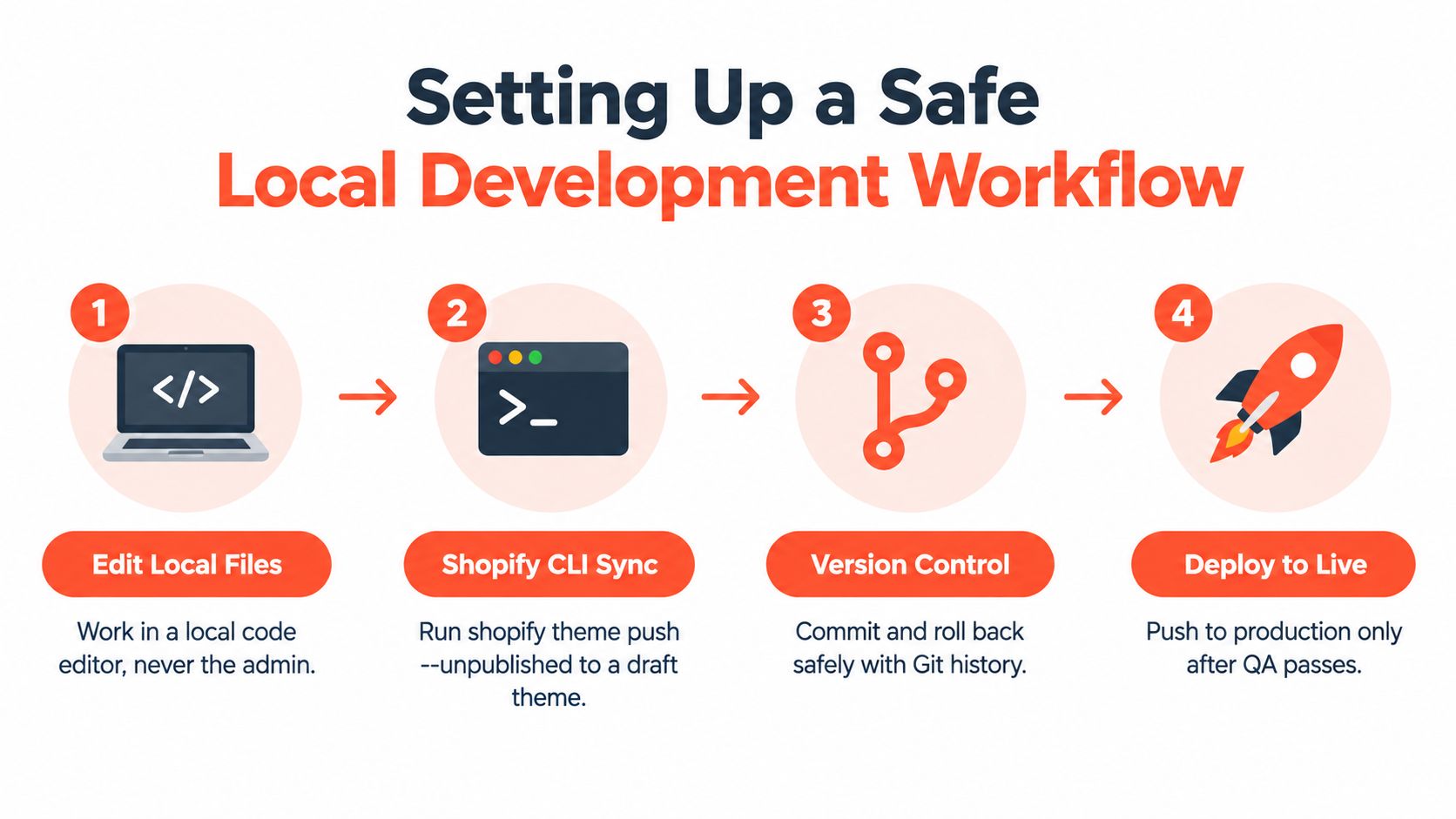
The admin code editor is convenient, but convenience isn't the same as safety. A professional workflow begins with an unpublished duplicate or development theme and keeps local files, review, and deployment separate.
The working sequence
Authenticate with Shopify CLI. Sign in to the store through Shopify CLI and confirm that you're working against the intended environment.
Pull the current theme. Run
shopify theme pullto obtain the store's current theme files. This gives you a local baseline instead of an outdated copy or an assumption about what production contains.Create a development preview. Run
shopify theme devand use the generated preview while editing. The preview lets you inspect changes without publishing them to customers.Make a focused change. Identify the affected JSON template, Liquid section, snippet, asset, or schema. Change the smallest relevant file instead of refactoring unrelated areas during the same task.
Review and synchronize deliberately. Use Git or an equivalent version-control system to record the change. Push to an unpublished theme for broader QA, then publish only after the review checklist passes.
The key command sequence is intentionally modest. Pull first, edit locally, preview continuously, and publish separately. Shopify's theme architecture documentation supports this separation by treating JSON templates as page composition and referenced sections as the rendering layer.
Keep the change reviewable. A pull request should explain the affected template, the customer-facing behavior, the fallback behavior, and the tests performed. If the work involves an app block, translation, analytics event, or editor interaction, call that out explicitly rather than treating it as a purely visual change.
For teams formalizing this process, a documented Shopify theme pipeline can help align local development, review, staging, and production deployment. The principle remains the same: unfinished code should exist in a development context, not in the storefront customers use.
Here's the deployment visual in context:
Navigating JSON Templates and Liquid Sections
Shopify's theme architecture becomes easier to manage when you treat a JSON template as a composition file rather than a page file. A JSON template identifies the sections that should appear, their order, and the settings associated with them. It doesn't contain the HTML that renders those sections.
Liquid sections provide that rendering layer. They contain markup, Liquid logic, schema settings, and block definitions. A merchant can then use the theme editor to arrange those sections while developers maintain the implementation in focused files. This separation is the foundation of maintainable Online Store 2.0 work.

Design around platform limits
Shopify permits up to 25 sections in a JSON template and up to 50 blocks in a section, as documented in the JSON template architecture. It also permits up to 1,000 JSON templates across all template types. These are platform limits, but they're also design signals.
A page that needs many configurable areas shouldn't become one giant section with every possible setting. Oversized sections are difficult to understand, difficult to test after re-rendering, and easy for merchants to configure inconsistently. Split the page into focused components with clear responsibilities, such as a hero, product-information area, recommendation module, and supporting content section.
JSON files are wrappers. Liquid files contain markup and code directly. Keeping that distinction clear prevents a common mistake, editing page composition and presentation in the same place. For a practical breakdown of reusable sections in Shopify, think in terms of components that can be placed in multiple templates without copying their implementation.
Choose reusable structure over duplication
Use an alternate JSON template when a product, collection, page, blog, or landing experience needs a distinct composition. Use a new section when the page needs a new configurable component. Use a theme block when the component should work across multiple sections.
The right architecture gives merchants freedom inside guardrails. They can reorder approved sections, while developers retain control over markup, accessibility, defaults, and integration points. That balance is more reliable than allowing every page to accumulate one-off code.
Validating Performance and Accessibility
A theme edit isn't complete when it looks correct in preview. It's complete when the change preserves usable interaction, stable rendering, and acceptable real-user performance across the storefront.
Shopify's Web Performance Reports use real-user data from the previous 30 days, segmented by desktop and mobile. The relevant Core Web Vitals are Largest Contentful Paint, Interaction to Next Paint, and Cumulative Layout Shift. Google's good thresholds are LCP within 2.5 seconds, INP within 200 milliseconds, and a low CLS score, with a practical target of at least 75% of page loads meeting those thresholds, as documented in Shopify's theme performance data.
The benchmark also shows why a developer preview isn't enough. Shopify's aggregated theme dataset reports a median share of shops passing all Core Web Vitals of 86.1%, with results ranging from 19.6% to 96.6%. Individual medians are 94.5% for LCP, 94.0% for CLS, and 97.2% for INP, so storefront performance varies substantially between implementations.
Check the change, not just the page
Record a baseline before changing hero media, JavaScript bundles, app embeds, third-party scripts, or image markup. After the change, compare the same real-user reports and isolate the likely cause instead of assuming that a faster local preview represents customer experience.
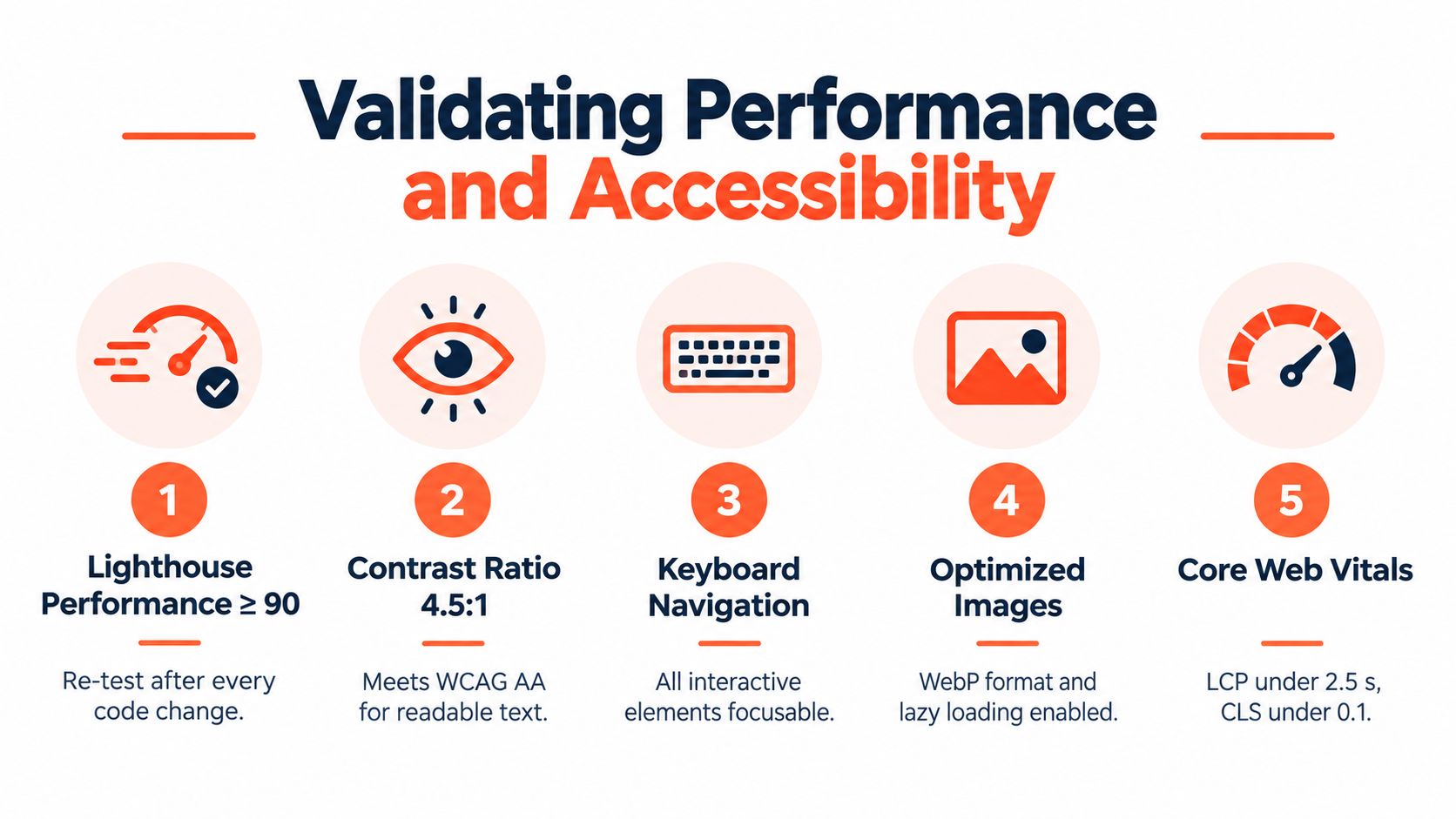
Run through a release checklist that includes the following:
Responsive behavior: Check representative product, collection, cart, and content templates on desktop and mobile widths.
Keyboard interaction: Confirm that menus, dialogs, carousels, quantity controls, and app-powered elements receive focus in a logical order.
Visual stability: Reserve image space with reliable dimensions and inspect whether late-loading content shifts buttons or purchase information.
JavaScript lifecycle: Test the initial page load and section re-rendering inside the theme editor. Scripts bound only once may fail when Shopify dynamically replaces a section in the DOM.
Content and tracking: Verify alt text, translations, structured content, analytics events, app blocks, and fallback states.
A component that survives a hard refresh but breaks after editor re-rendering is not production-ready.
Avoid adding a noncritical script synchronously merely because it solves a short-term integration problem. Also retest after installing or enabling an app. App embeds and third-party scripts can alter loading and interaction behavior outside the file you edited.
Deploying Changes and Planning Rollbacks
Publishing should be a controlled cutover, not the final click in an improvised editing session. First confirm that the unpublished theme contains the intended files, the correct JSON assignments, and no unrelated local changes.
Run the final checks against realistic products, collections, cart states, customer paths, and mobile layouts. Review app blocks, translations, accessibility behavior, analytics, and any JavaScript that depends on section lifecycle events. Then publish the validated theme through Shopify's theme management workflow.
Keep the previous stable theme available until the new version has been observed in production. If a section breaks an app integration, a cart interaction fails, or performance degrades, revert to the earlier stable theme rather than patching blindly under pressure. Theme rollback protects storefront code, but it doesn't undo merchant data changes or external system activity, so operational teams should record those separately.
A reliable release sequence
Compare: Review the exact file and template changes against the current production baseline.
Publish: Move only the tested unpublished theme to live.
Monitor: Check key storefront paths, error monitoring, analytics events, and real-user performance after release.
Revert: Restore the prior stable theme if a critical regression appears, then investigate in development.
Teams that need a repeatable cutover process can use a documented zero-downtime deployment approach to define ownership, checks, and rollback responsibilities. The important habit is to make reversal routine rather than treating it as an emergency invention.
A safe answer to “how to edit Shopify theme” is therefore broader than a list of editor clicks. Choose the right implementation layer, work locally, compose pages with reusable components, test real interactions, compare real-user performance, and publish only when the previous version remains available as a safety net.
Presidio builds and supports custom Shopify themes, storefront features, and performance-focused development workflows for brands operating on Shopify and Shopify Plus. Visit Presidio to discuss a maintainable theme customization or a safer release process for your store.

Jamie, Presidio’s Designer, leads the practice alongside Johnnie. With over 10 years of e-commerce experience, Jay is a Shopify expert, known for crafting innovative solutions that prevent tech debt.
Jaime
Senior Product Designer, 2020