Outrank AI

The most common answer to “What's the right hero image size?” is 1920 × 1080 pixels. That's a useful desktop starting point, but it's a poor Shopify implementation strategy when treated as a universal rule. The right asset depends on the rendered box, the crop at each breakpoint, the image's role in Largest Contentful Paint, and how many bytes the browser has to download.
A hero image isn't one file serving one layout. It's a set of deliberate crops negotiated between the viewport, the theme's CSS, the product or subject's focal point, and the page's performance budget. The desktop recommendation may look excellent in a design file and still produce a weak mobile composition or a slow first render. The practical answer to hero image size is therefore breakpoint-aware, not universal.
Table of Contents
Baseline Hero Image Dimensions for Desktop, Tablet, and Mobile
Shopify Theme Specific Tips for Broadcast, Palo Alto, and Modular
Why One Universal Hero Size Does Not Work
A single 1920 × 1080 image can look balanced on a wide laptop and still fail on a portrait phone. The browser may crop away the product, leave too much empty background, or place the headline over a visually busy area. Sending that same large source to every device also wastes bytes, particularly when the rendered mobile slot is much smaller.
Historical design guidance commonly uses the 16:9 desktop format, with recommendations ranging from 1280 × 720 to 1920 × 1080 pixels. Mobile hero assets are often treated differently, with portrait-oriented starting points around 800 × 1200 pixels or 375 × 600 pixels, as outlined in this guide to website hero image dimensions. Those are useful reference points, not instructions to upload one universal master and leave the theme to solve every crop.
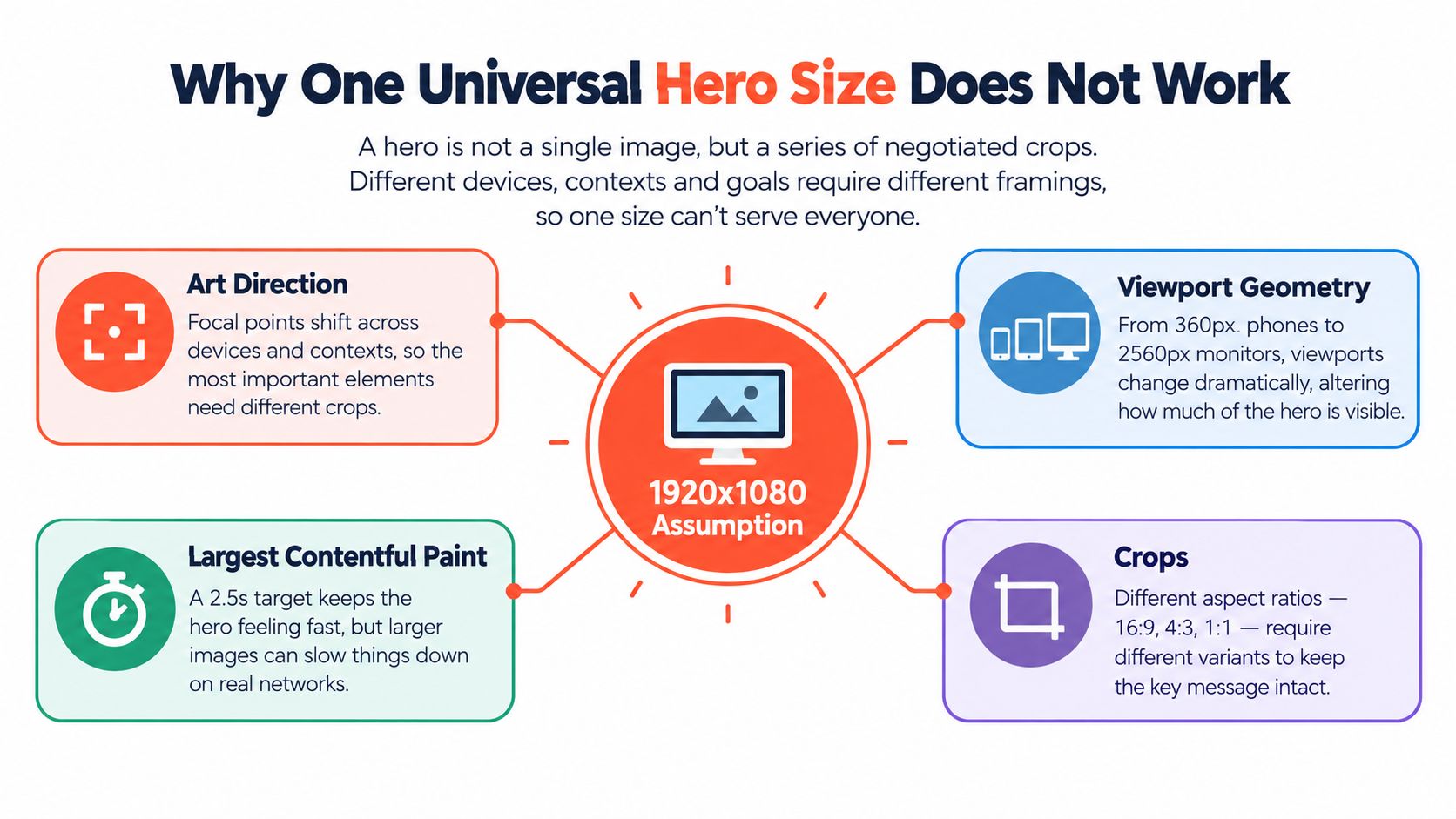
The crop is part of the design
A product placed near the edge of a desktop frame may disappear when the theme switches to a portrait crop. A model's face may remain visible while the product or CTA loses its visual relationship. This is why the focal point matters as much as the source dimensions.
I treat the hero as a decision matrix:
Viewport geometry: Identify the actual hero box on desktop, tablet, and mobile.
Art direction: Decide whether each breakpoint needs a distinct crop, not merely a smaller rendition.
Theme behavior: Check whether the theme uses
cover, a fixed aspect ratio, focal-point positioning, or a separate mobile image.LCP responsibility: Confirm whether the hero is the page's Largest Contentful Paint element.
File delivery: Serve a responsive width and an efficient format rather than the largest available file.
A 3000-pixel-wide hero displayed at 1200 pixels can make the browser download roughly six times more pixel data than needed, according to this LCP image optimization guide. The problem isn't only visual sharpness. It's priority. A browser processing an oversized hero has more work to do before the opening viewport becomes useful.
Practical rule: Choose the smallest purpose-built asset that preserves the subject, copy, and CTA at the breakpoint where it will appear.
Good hero composition supports the wider principles of conversion-focused website design, where visual hierarchy and the next action need to work together. A beautiful image that pushes the CTA into a poor crop is not doing its job.
Baseline Hero Image Dimensions for Desktop, Tablet, and Mobile
Start with the theme's rendered container, then choose an image that gives the browser enough pixels for that container without creating unnecessary overhead. The familiar 16:9 desktop ratio remains a practical baseline for full-width hero sections, but some layouts need a wider or shorter composition to preserve headline space.
Desktop
For a broad desktop hero, begin with a source in the range of 1280 × 720 to 1920 × 1080 pixels. Use the wider end when the image spans the full content area and contains fine product detail. Use the smaller end when the hero occupies a more contained region or when the visual remains clear after compression.
Keep the important subject away from edges that may be trimmed by object-fit: cover. A desktop image should also leave enough negative space for the headline and CTA without making the visitor search for the product.
Tablet
Tablet layouts often sit between desktop composition and mobile cropping. Don't assume the desktop asset will remain balanced. Check whether the theme reduces the hero's height, changes the text position, or turns a wide composition into a squarer frame.
A useful approach is to create a separate tablet rendition when the desktop crop cuts into the subject or leaves too much unused background. The dimension should follow the rendered aspect ratio rather than a stock pixel recommendation.
Mobile
Portrait assets commonly use dimensions around 800 × 1200 pixels or 375 × 600 pixels, depending on the mobile container and the level of detail required. The important decision is art direction. A mobile crop should protect the product, face, headline contrast, and CTA instead of just shrinking the desktop frame.
Device Class | Source Dimensions (px) | Aspect Ratio | Target Weight |
|---|---|---|---|
Desktop | 1280 × 720 to 1920 × 1080 | 16:9 baseline | Keep as light as image quality allows |
Tablet | Derive from the rendered theme container | Often between wide and square | Use a separate rendition when the desktop crop fails |
Mobile | Around 800 × 1200 or 375 × 600 | Portrait | Prioritize a purpose-built crop and fast delivery |
These dimensions are starting points. The hero image guidance from Shopify also reflects the underlying issue, device mix and theme behavior change the answer. A theme with a short banner needs a different composition from a full-height image section.
Before exporting, open the storefront at the actual breakpoints and measure the visible box. The asset is correct only when the rendered subject survives, the text remains legible, and the browser isn't downloading far more image than the viewport can display.
Responsive Sizing With srcset and Shopify Breakpoints
Responsive markup lets the browser select an appropriate image candidate instead of receiving the same large asset at every viewport. The two important attributes are srcset, which lists available widths, and sizes, which tells the browser how wide the image is expected to render.
In Shopify Liquid, an image selected through the theme editor can be transformed with image_url. A practical implementation uses several width candidates and a sizes value that mirrors the actual CSS. For example, an image can expose candidates such as 400w, 800w, 1200w, and 1920w, while the sizes attribute describes a full-width hero on smaller screens and a constrained width on larger screens.
The markup should also reserve space. Set explicit width and height attributes, or use a container with a deliberate aspect-ratio. That prevents the page from shifting when the image arrives and gives the browser a clearer layout plan. For the actual LCP candidate, use an image element rather than hiding the hero inside a CSS background when possible.
A typical Liquid pattern can be expressed as inline markup such as srcset="{{ image | image_url: width: 400 }} 400w, {{ image | image_url: width: 800 }} 800w, {{ image | image_url: width: 1200 }} 1200w, {{ image | image_url: width: 1920 }} 1920w" paired with a sizes value matching the theme's rendered box. The exact candidates should follow the source available in Shopify and the sizes your theme requests, not a copied list that doesn't match the layout.
Priority belongs to the true LCP image
If the hero is above the fold and is the LCP element, it generally needs loading="eager" and fetchpriority="high". Don't apply those attributes to every image. Preloading multiple decorative assets can create competition and make the browser's priority queue less effective.
The practical sizing method is to identify the LCP element, serve it as a real image with reserved dimensions, preload it when appropriate, and use responsive variants with srcset and sizes. This hero image LCP guide also recommends modern formats, CDN delivery, and caching as part of the delivery strategy.
Shopify sections can add another layer of complexity. Theme settings, section schemas, and image filters may generate markup that looks responsive while the surrounding fixed-aspect container still determines the crop. The Shopify sections implementation guidance is useful context when tracing how a merchant-selected image travels from the editor to the rendered section.
The video below provides a visual reference for responsive hero implementation. Watch it after checking the markup, then compare the demonstrated behavior with the actual storefront rather than assuming the theme behaves the same way.
Legacy sections may wrap the image in a fixed-aspect <div> that limits the usefulness of sizes. Always inspect the rendered box in DevTools. The browser chooses a source based on the layout it sees, so a perfect srcset cannot correct a misleading container.
Choosing the Right File Format for Shopify Heroes
Format choice is a trade-off between compression, browser support, encoding complexity, and visual fidelity. There isn't one format that wins for every store, product category, or theme.
AVIF can deliver very efficient compression and is a strong candidate when image performance is the priority. It deserves careful testing on the devices and browsers your customers use, particularly when a storefront still relies on older theme code or a broad range of mobile hardware.
WebP is the practical default for many Shopify heroes. It usually offers a useful reduction compared with JPEG while retaining good photographic quality, and it has broad support across current browsers. For most stores, WebP is the format I'd test first when the team wants a straightforward production choice.
JPEG remains a dependable fallback for photographic images and integrations that require it. It's familiar, widely supported, and easy to troubleshoot, but it can become unnecessarily heavy when exported at a high quality setting or at dimensions far beyond the rendered box.
PNG has a legitimate role when transparency or crisp line art matters. It's usually a poor choice for a photographic hero because large areas of color and image detail can produce excessive weight. Don't use PNG merely because it feels safer.
Format | Typical Savings vs JPEG | Browser Support | Best Use Case | Watch Out For |
|---|---|---|---|---|
AVIF | Often smaller than comparable JPEG or WebP files | Test across the store's target browsers | Performance-focused photographic heroes | Encoding, decoding, and legacy support |
WebP | Commonly more efficient than JPEG | Broad support in modern browsers | Default photographic hero delivery | Validate quality at the chosen compression level |
JPEG | Baseline format | Very broad support | Fallbacks and compatibility requirements | Higher weight at large dimensions |
PNG | Usually inefficient for photos | Very broad support | Transparency and line art | Large photographic files |
Shopify's image delivery can participate in format negotiation, but the uploaded master and theme implementation still matter. Test the actual response in the browser's Network panel. Don't assume a modern format is being served just because the theme supports responsive images.
My decision rule is simple: use AVIF when performance testing supports it, use WebP as the practical ship-ready choice, and retain JPEG when a third-party requirement or compatibility constraint demands it. The file format cannot rescue a badly cropped image or an oversized source, so solve composition and rendered dimensions first.
Compression Workflow and File Weight Budgets
A fast hero starts with the correct source dimensions. Recompressing an oversized master does not remove the waste created when a desktop image is forced into a small mobile slot. Keep an untouched high-resolution original outside Shopify, then export responsive renditions and inspect each one at its intended display size.
Use this workflow:
Prepare the master: Store the original separately so you can create new crops without degrading the source.
Create art-directed variants: Export desktop, tablet, and mobile crops when the focal point or composition changes. One file is not enough when the subject moves between breakpoints.
Compress with a controlled tool: Use Squoosh or ImageOptim, then compare quality at the rendered size rather than judging only the full-resolution export.
Name files by purpose: Include the section and breakpoint in each filename. This reduces the chance that a later editor uploads the wrong crop.
Inspect the response: Use the browser's Network panel to confirm that Shopify delivers the selected width and format instead of the original master.
Set a separate weight budget for each breakpoint. These are practical starting targets measured after CDN transformation:
Breakpoint | Starting hero budget |
|---|---|
Desktop | 200 to 250 KB |
Tablet | 120 to 160 KB |
Mobile | 80 to 120 KB |
Treat the budgets as constraints for the design and export process, not as a universal rule. A detailed product scene may need a different quality setting from a flat illustration or gradient. If a crop cannot stay within its target without visible damage, reduce the rendered dimensions, simplify the composition, or revisit the asset.
The file budget belongs in the design brief, not in the cleanup queue after launch.
Use Chrome DevTools with network throttling to check when the hero request begins and when it finishes. Run PageSpeed Insights on a representative home or product page as well. A staging page with fewer apps and different content can hide the bandwidth competition that affects the live storefront.
Test the result manually on a real iPhone over cellular. Check for a blank hero, late image replacement, text movement, and a crop that hides the product. If the hero is the LCP element, every unnecessary byte delays the page's main visual.
Teams running multiple campaigns need a repeatable approval, naming, and export process. A documented digital asset workflow guide can assign ownership and reduce accidental reuse of an uncompressed master.
Connect asset checks with Shopify performance optimization guidance. App scripts, fonts, product media, and section code compete with the hero for early bandwidth, so each breakpoint budget must fit the page's total loading cost.
Shopify Theme Specific Tips for Broadcast, Palo Alto, and Modular
Theme names don't tell you enough about hero image behavior. The same uploaded file can produce three different outcomes depending on the section settings, container ratio, text placement, and focal-point controls. I never approve a hero from the theme editor preview alone.
Broadcast
For a Broadcast storefront, start by checking whether the hero is a full-bleed slideshow, a static section, or a narrower promotional banner. Full-bleed layouts need a source that remains sharp across the widest intended viewport, while the mobile crop must protect the product and leave room for navigation and copy.
Check the section's focal-point control with a deliberately difficult image. Move the focal point and observe whether the subject actually shifts, or whether the control only changes the apparent zoom. That distinction matters. A zoom control can make a subject larger without moving it away from an overlaid headline.
Slideshow sections deserve a separate performance check. The first visible slide is the candidate that should receive priority. Secondary slides shouldn't compete with it during the initial render, particularly when the theme preloads or requests them earlier than expected.
Palo Alto
Palo Alto should be tested through its actual homepage hero container, not a generic browser window. Fixed-aspect layouts can waste image width when the source is much wider than the rendered box, while a generous mobile crop can expose too much background and weaken the message.
Upload the intended hero through the section's image setting, then inspect the generated <img> attributes. Confirm the selected source changes with viewport width and that compression survives the CDN transformation. A preloaded image still needs optimization. Priority improves discovery, but it doesn't make an oversized master efficient.
Modular
Modular collection heroes often need a different composition from a homepage lifestyle hero. When the section overlays a headline, reserve one side of the frame for text and place the product or subject on the opposite side. The exact side depends on the theme setting and the reading direction of the storefront.
Test the collection template with long and short headlines. A crop that works for a short campaign phrase may collide with a longer category title. Also check the focal-point setting at mobile width, because moving the image can place the subject directly beneath the text block.
The guide to choosing a Shopify theme is a useful reminder that theme selection affects more than visual style. Section architecture, editor controls, and rendered markup shape how much control you have over hero crops and delivery.
For all three themes, I use the same review sequence:
Render the section: Test the homepage, collection, and product templates where the asset will appear.
Change the viewport: Check wide desktop, tablet, and portrait mobile states.
Move the focal point: Confirm the control changes composition rather than merely scaling.
Inspect the request: Verify the browser downloads a sensible responsive variant.
Measure the LCP candidate: Confirm the first visible hero is prioritized and secondary slides don't interfere.
The theme's preview is a design tool. DevTools, a throttled connection, and a real device are the release gate.
Pre-Launch Hero Image Checklist

Run this checklist whenever a hero changes. A short pre-launch pass is faster than diagnosing a campaign page after release, especially when the hero is the LCP element.
Dimension checks
Desktop source: Confirm the composition works within the 16:9 baseline, then check the actual desktop dimensions used by the theme.
Tablet crop: Open the tablet layout and verify that the subject remains visible as the container changes shape.
Mobile source: Use a portrait-safe crop when the desktop composition hides the product, face, headline, or CTA.
Retina behavior: Check the rendered size and make sure the browser is not downloading a source much larger than the visible box.
Safe space: Keep the focal subject clear of navigation, copy, buttons, and other overlay elements.
Responsive markup checks
Source selection: Inspect
srcsetin DevTools. At each viewport, confirm the browser selects a candidate close to the rendered requirement.Rendered width: Confirm
sizesdescribes the actual CSS box, not an assumed layout width.Layout stability: Add explicit dimensions or an aspect-ratio container so the page does not shift while the hero loads.
LCP priority: If the hero is the LCP element, confirm it receives appropriate eager loading and priority handling.
Slideshow order: Make sure the first visible slide loads before secondary slides and does not compete with them for early bandwidth.
Format and weight checks
Primary format: Test WebP or AVIF for photographic assets, with a compatible fallback where the storefront requires one.
JPEG fallback: Compress the fallback separately. Do not export it from an already compressed file.
PNG restraint: Use PNG only when transparency or line art requires it.
Desktop ceiling: Compare the optimized file with the 200 to 250 KB desktop budget set in the compression workflow above.
Visual quality: Inspect product edges, skin tones, text baked into the image, and gradients at the quality setting used for production.
Theme behavior checks
Crop integrity: Test every assigned section at the storefront breakpoints, not only in the theme editor.
Focal point: Move the setting and confirm the subject responds as expected at each crop.
Overlay contrast: Check headline and CTA readability over bright, dark, and visually busy areas.
Network request: Confirm CDN resizing and format delivery work in the live theme preview.
Real device pass: Load the page over cellular and watch for delayed rendering, layout shift, or a blank hero.
The right hero image size comes from this QA process, not from copying one value into a design brief. Set the crop for each breakpoint, match the file to the rendered box, and give the LCP candidate the delivery priority it needs.

Jamie, Presidio’s Designer, leads the practice alongside Johnnie. With over 10 years of e-commerce experience, Jay is a Shopify expert, known for crafting innovative solutions that prevent tech debt.
Jaime
Senior Product Designer, 2020