Outrank AI

Your new theme passed its pre-launch checks. The homepage looked fast on a desktop connection in the office, the Lighthouse circle turned green, and the team moved on to the next campaign. Then mobile shoppers started tapping product pages, opening quizzes, changing variants, and waiting. That's the gap a proper Core Web Vitals audit is built to find.
Table of Contents
Why a Shopify Store Needs a Real Core Web Vitals Audit
A DTC brand ships a redesigned theme on a Tuesday. The developer runs Lighthouse on the homepage, gets a reassuring score, and shares the screenshot. By the weekend, mobile conversion is softer, support mentions a jumpy product page, and Search Console shows a growing group of poor URLs.
The synthetic test didn't shop the store. It didn't wait for a quiz module to hydrate, pick a shade, open the cart drawer, or load a collection on a mid-tier Android phone over a real cellular connection. Real customers did all of that, and their experience is what field data records.
What an Audit Actually Answers
A useful audit isn't a score. It's a structured reconciliation of how shoppers experience loading, responsiveness, and visual stability across the templates that make money. It asks which customer segments are failing, on which devices and templates, and what's causing each failure.
That framing changes the work. Instead of optimizing the homepage in isolation, you're segmenting product, collection, search, and cart flows by device, geography, and traffic source. That's also why performance belongs inside a broader technical SEO review for ecommerce stores, not in a separate speed ticket nobody owns.
A single Lighthouse number tells you how one simulated visit behaved. It doesn't tell you which shoppers are having a bad experience, or where.
The stakes are not theoretical. Google reports that 40% of sites in Chrome UX Report data fail the recommended LCP threshold, and among pages with poor LCP, the LCP image is delayed on the client by 1,290 milliseconds at the 75th percentile, more than half of the 2.5-second good budget, according to Google's guidance on the top Core Web Vitals recommendations. On a Shopify product page, that delay is often the hero image your customer came to see.
Where Shopify Stores Hide the Problem
Shopify's hosted infrastructure handles a lot, but it doesn't control your theme code, app embeds, image choices, or third-party widgets. Those layers stack up differently on every template. A collection page may carry heavy filtering scripts. A PDP may carry reviews, subscriptions, and personalization. The cart drawer may carry its own JavaScript burden.
A real audit treats each template as its own surface with its own failure modes. It also annotates findings by theme release, app installation, campaign, and market, because a regression that started the day an app shipped has an obvious suspect.
You'll know the audit is scoped correctly when it can answer business questions, not just technical ones. Which segment is failing, what's the likely revenue exposure, and which fix helps shoppers rather than flattering a dashboard.
The Three Metrics and What Good Really Means
Three metrics make up the current framework. Largest Contentful Paint, or LCP, measures loading performance and marks when the main content appears. Interaction to Next Paint, or INP, measures responsiveness across a shopper's interactions. Cumulative Layout Shift, or CLS, measures visual stability, or whether content jumps around while loading.
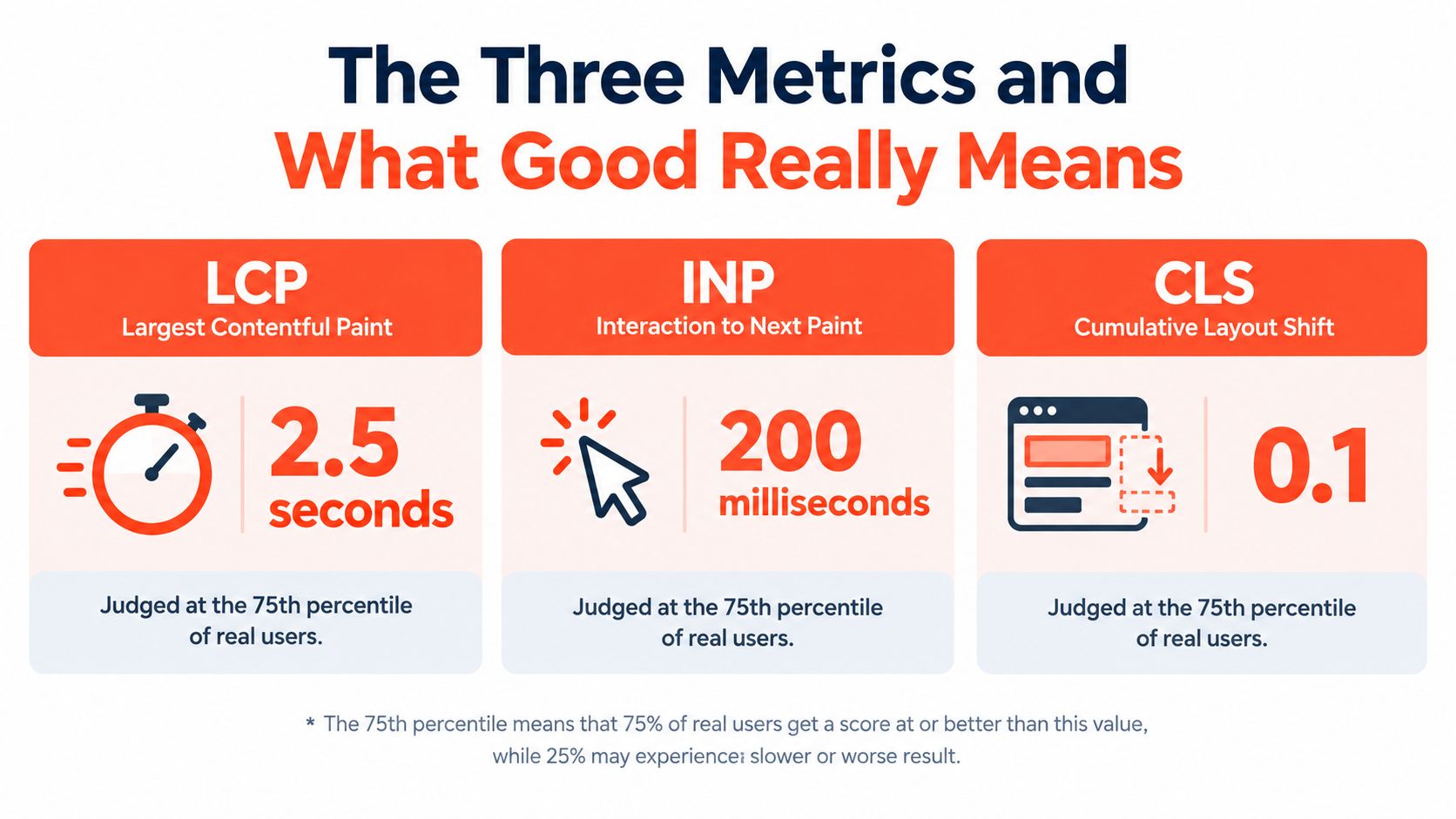
The thresholds are simple on paper. A page passes only when all three metrics are good in field data. One strong metric doesn't compensate for a weak one, so a stable page that loads slowly still fails, and so does a fast page that ignores taps.
Core Web Vitals Thresholds at a Glance
Metric | What It Measures | Good Threshold | Why It Matters for Shopify |
|---|---|---|---|
LCP | Loading performance | 2.5 seconds or less | Hero and product imagery visible quickly |
INP | Responsiveness to interactions | 200 milliseconds or less | Variant, filter, and cart taps feel instant |
CLS | Visual stability | 0.1 or less | Buttons and prices don't jump under a thumb |
Why the 75th Percentile Trips Teams Up
Google judges each metric at the 75th percentile of real page loads. Core Web Vitals are assessed at the 75th percentile, and a page must perform well for at least 75% of observed users to receive a good assessment, with mobile and desktop typically separated. Your average can look healthy while you still fail, because a slow minority drags the percentile past the line.
That minority isn't random. It's often shoppers on older phones, weaker networks, or international connections farther from your assets. If your paid traffic lands in exactly those segments, an average-based view hides your most expensive problem.
Mobile and desktop are assessed separately for good reason. Desktop hardware and broadband mask heavy JavaScript and oversized images that punish phones. For most Shopify stores, mobile is where revenue and risk concentrate, so treat the mobile assessment as the primary one and desktop as supporting evidence.
Practical rule: never report a storewide average. Report each metric per template, per device class, at the 75th percentile, or you're reporting a number nobody experiences.
INP deserves one extra note because it replaced First Input Delay. Instead of judging only the first interaction, it reflects responsiveness across the session. A page that responds well to the first tap but stalls on the fourth variant change is now exposed.
Choosing the Right Tools for Field and Lab Data
Most audit mistakes start with tool choice. Teams pick one dashboard, trust it completely, and then argue about why another tool disagrees. Each instrument answers a different question, and confusing them produces confident, wrong conclusions.
Field data comes from real users and tells you what happened. Lab data comes from controlled simulations and tells you why it probably happened. You need both, in that order. Diagnose impact in the field first, then reproduce causes in the lab.
Field Tools Tell You Who Is Failing
The Chrome User Experience Report, or CrUX, is Google's real-user dataset and the basis of its assessment. PageSpeed Insights surfaces CrUX data for a URL alongside a lab test, and Search Console groups your URLs by status so template-wide problems become visible. The latest available CrUX release covered more than 18 million origins, yet only 53.0% passed all three metrics, despite 66.6% passing LCP, 79.6% CLS, and 85.4% INP individually, per the Search Console Core Web Vitals report documentation.
CrUX has real limits, though. It's delayed, it reflects Chrome users only, and it doesn't break performance down by device tier, country, template, traffic source, or checkout state. That's where first-party real user monitoring, or RUM, earns its place, giving you near-real-time segmentation your team controls.
Field and Lab Tools for Core Web Vitals
Tool | Data Source | Best For | Limitation |
|---|---|---|---|
CrUX and Search Console | Real Chrome users | Google's pass or fail assessment | Delayed, Chrome only, coarse segments |
PageSpeed Insights | CrUX plus Lighthouse | Quick field and lab snapshot per URL | Single URL view, not template strategy |
Lighthouse | Simulated lab test | Repeatable before and after checks | One device and network profile |
Chrome DevTools | Local traces | Finding long tasks and shift sources | Your machine, not your customer's |
First-party RUM | Your own visitors | Segmenting by template and source | You must implement and maintain it |
Lab Tools Tell You Why
Lighthouse and DevTools traces are diagnostic instruments, not verdicts. Throttle the CPU and network, load a representative product page, and record the LCP element, render-blocking resources, main-thread tasks, and third-party scripts. Then interact with the page the way a shopper would, because that's where INP causes live.
For teams formalizing this workflow, resources like The SEO Agent can help structure the surrounding audit process, while the performance evidence itself should still come from your CrUX, Search Console, and trace data. Tooling organizes the work. It doesn't replace the measurement.
Use the three layers together. Search Console says mobile PDPs are failing. RUM says the failures concentrate in one market and one traffic source. A throttled trace shows the blocking script. That's an audit finding you can act on.
Diagnosing LCP on Collection and Product Templates
Generic advice says compress your images and move on. That rarely fixes a Shopify LCP problem, because the bottleneck is usually not file size alone. It's when the browser discovers the image, what competes with it, and what blocks it from painting.
In the July 2025 CrUX dataset, good LCP was materially less common than good INP or CLS, at 66.6% versus 85.4% and 79.6% respectively, pointing to above-the-fold image delivery, server response, font behavior, and render-blocking resources as priority targets, as reported in the Chrome UX Report release announcement. Loading is the hardest metric to get right, so it deserves decomposition, not guesswork.

Break LCP Into Four Phases
Every LCP timing splits into phases, and each phase has a different owner and fix.
Server response time: How long the browser waits for the first HTML. Slow here points at server, caching, or heavy liquid rendering, not images.
Resource-load delay: The gap before the LCP resource starts downloading. Late discovery hides here, and it's often the biggest fixable waste.
Resource-load duration: The actual download time. Oversized images and wrong viewport sizes show up here, which is why correct hero image sizing matters more than blanket compression.
Element-render delay: Time between download and paint. Render-blocking CSS, fonts, and main-thread JavaScript stall this phase.
Measure the phases per template before touching anything. If load delay dominates, compression won't save you. If render delay dominates, a smaller image changes nothing.
Find the Real LCP Element
The LCP element on a PDP is typically the primary product image. On a collection page, it's often a lifestyle banner or the first large product tile. Confirm it in a DevTools trace rather than assuming, because app-injected banners and promotional blocks sometimes become the largest paint unexpectedly.
Then run a short checklist against that element. Is it present in the initial HTML, or injected by JavaScript after load? Is it lazy-loaded by a theme setting that was meant for below-the-fold content? Is it blocked behind render-blocking CSS or a consent banner? Is the served size far larger than the viewport needs?
The most common Shopify LCP bug is a hero image that's lazy-loaded, JavaScript-injected, or both. The browser can't prioritize what it discovers late.
Shopify-specific causes compound this. Theme section blocks can defer media, image transformations can serve mismatched sizes, and app embeds placed above the fold push content later. A reviews badge or personalization slot that loads early can also trigger CLS if it doesn't reserve space, so check dimensions on images, video, embeds, and promotional bars while you're there.
Annotate every finding by template and theme release. When the next release ships, you'll know whether LCP moved because of your fix or because marketing swapped the hero creative.
Finally, test cold and warm. A warmed cache flatters every phase. Your first-time shopper from an ad click arrives cold, and that visit deserves the honest number.
Profiling INP Across Real Purchase Interactions
INP failures rarely appear during page load. They appear when a shopper does something valuable, like choosing a size, filtering a collection, answering a quiz question, or updating quantity in the cart drawer. That's exactly why synthetic tests miss them.
The image below shows the kind of analytics view teams stare at while the problem sits inside individual interactions, invisible to a load-only test.
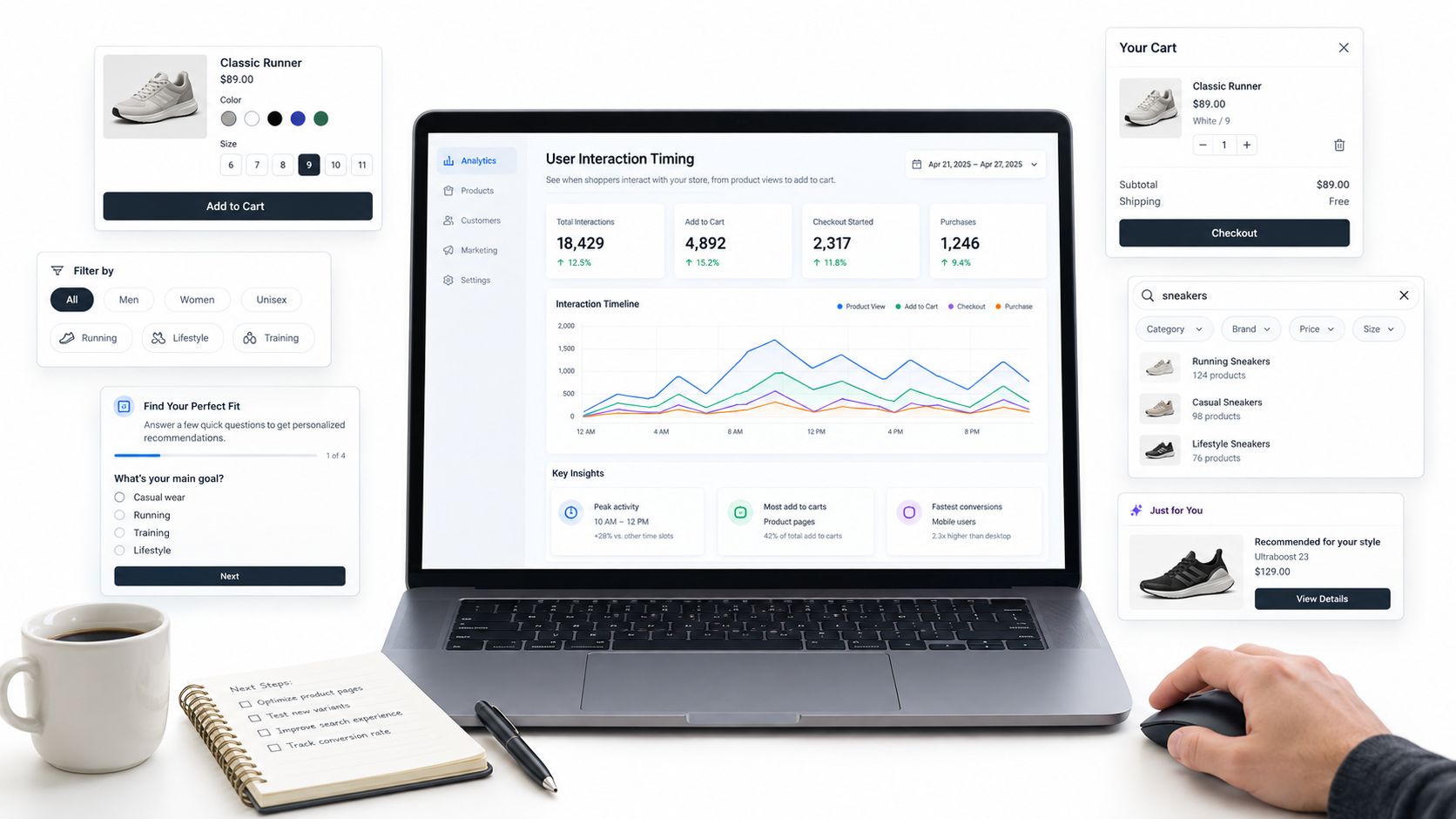
Treating a single Lighthouse run as the site's score is a common pitfall because lab conditions cannot represent the full distribution of devices, networks, geographies, or real interactions, and synthetic tests may miss post-load interactions such as variant selection, quiz steps, cart drawers, and personalization widgets, as explained in Google's overview of the Web Vitals program. Your audit has to recreate the purchase journey, not just the landing.
Record Interactions, Not Just Loads
Open a representative PDP in Chrome DevTools with CPU throttling enabled. Start a performance recording, then shop. Change variants, open and close the cart drawer, apply filters on the collection page, complete quiz steps, and refine search results.
Long tasks appear as extended blocks on the main thread. Click into them and map each one back to the event handler that caused it. On Shopify stores, the usual culprits are theme section hydration, app-injected event listeners, and review or recommendation widgets that recalculate layout or rebuild DOM nodes on every interaction.
Break the worst interactions into input delay, processing time, and presentation delay. Input delay means the main thread was busy before your handler ran. Processing time means your handler itself is heavy. Presentation delay means rendering the result took too long. Each pattern points to a different fix, from yielding to the main thread to reducing DOM work to deferring non-essential updates.
The video below walks through reading these traces, which is worth watching before your first profiling session if DevTools timelines are new to you.
Confirm the Fix in the Field
A cleaner trace on your laptop isn't proof. Confirm movement in RUM segmented by interaction type, then watch Search Console as fresh field data accumulates. Interactions tied to revenue deserve the closest monitoring, including the path covered in a Shopify checkout optimization review, because responsiveness near purchase carries commercial weight a homepage interaction doesn't.
Be skeptical of fixes that only help the first interaction. INP reflects the session, so a shopper's fifth filter change after several widgets have loaded is often the worst one. Profile late interactions with every app active, not a stripped page.
If your trace doesn't include a variant change, a cart update, and a filter, you haven't profiled INP. You've profiled a page load with extra steps.
Document each slow interaction with its trace, the responsible handler, and the app or theme section that owns it. That record turns vague complaints about a sluggish PDP into a ticket an engineer can close.
Building a Prioritized Remediation Backlog
Finding issues is the easy half. Sequencing fixes is where audits succeed or stall, because every slow script on a Shopify store usually exists for a revenue reason. Reviews build trust. Quizzes drive product discovery. Chat answers pre-purchase questions. Analytics and consent tools are operational requirements, not decoration.

So don't rank the backlog by Lighthouse delta. Rank it by affected sessions, template value, and expected effect on add-to-cart and conversion. A modest INP gain on the PDP can matter more than a large LCP gain on a low-traffic content page.
Make the Trade-Off Explicit
For each third-party category, write down what it costs and what it earns before deciding anything.
Reviews and recommendations: Often heavy and shift-prone, but directly tied to product confidence. Prefer reserving space and deferring load over removal.
Quizzes and personalization: Interaction-heavy by design, so profile their handlers and load them on intent where possible, then measure engagement alongside INP.
Chat and consent: Frequently render-blocking or layout-shifting, yet hard to remove. Lazy-load chat after interaction, and reserve fixed space for consent UI.
Analytics and tags: Individually light, collectively heavy. Audit for duplicates and orphaned tags from finished campaigns.
The honest question for each item is whether a fix improves both customer experience and contribution margin, or merely improves a score. Where the answer is unclear, run a controlled experiment and measure add-to-cart rate, conversion rate, and revenue per session alongside the vitals. Removing a widget that lifts conversion to gain milliseconds you can't connect to revenue is a bad trade dressed as optimization.
Sequence quick structural wins first, like reserving dimensions, fixing lazy-loaded heroes, and removing dead tags. Then tackle negotiated work with app vendors, where your trace evidence gives you advantage.
Verifying Fixes With Cold Caches and Field Movement
The most common way audits fail is at the finish line. Someone runs Lighthouse once, on a warm cache, with apps behaving, sees green, and closes the ticket. Production disagrees within days.
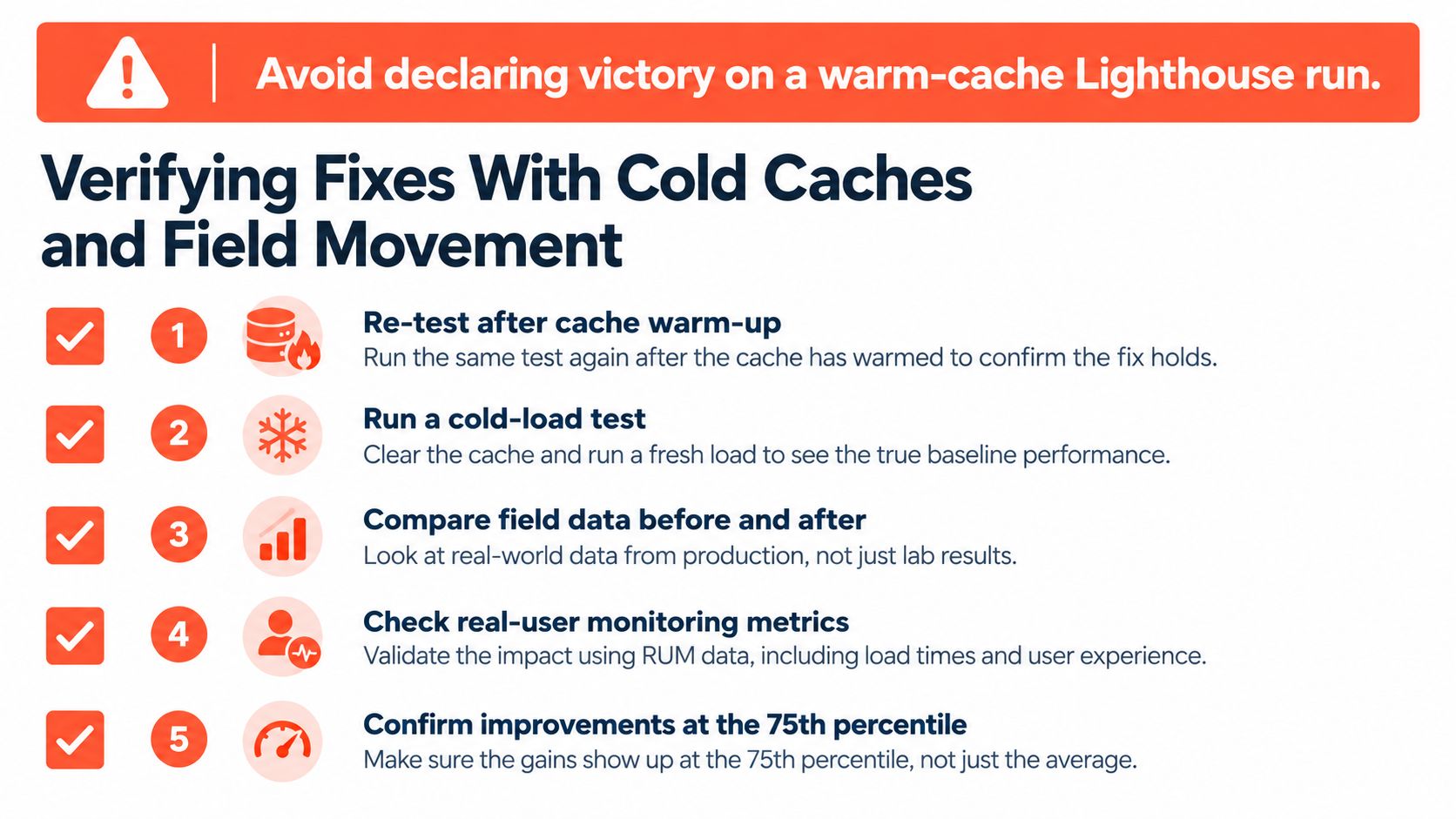
Verify like a skeptic. Re-test with a cold cache and after warm-up, under mobile throttling, across collection, product, search, cart, and checkout-adjacent templates, with every third-party script restored. If a fix only survives a clean lab, it isn't a fix.
Then wait for the field. Read movement in CrUX and Search Console across the following release window, segmented by template and device, and compare against your pre-fix baseline at the 75th percentile. Field data lags, so a same-day lab gain is a hypothesis, not a result.
A complete audit deliverable should contain the baseline per template, the traced causes, the prioritized backlog with trade-offs noted, and the verification evidence from both lab and field. When that package exists, the work is done. The green bar alone never proved anything.
Presidio audits Shopify storefronts at the template and segment level, tracing LCP, INP, and CLS causes in your theme and app stack, then sequencing fixes by revenue impact and verifying them against real field movement. If your Lighthouse score looks fine but your mobile shoppers are still waiting, visit Presidio to talk through a Core Web Vitals audit built around how your customers shop.

Jamie, Presidio’s Designer, leads the practice alongside Johnnie. With over 10 years of e-commerce experience, Jay is a Shopify expert, known for crafting innovative solutions that prevent tech debt.
Jaime
Senior Product Designer, 2020